

Where is the CoreGPT icon?
The add-in is already installed — you just need to find the icon. It lives in the Outlook toolbar when you have an email open.
The icon only appears when you have an email open — it won’t show in your inbox list view.
Open the add-in
- Outlook on the Web (OWA)
- New Outlook (Desktop)
- Classic Outlook (Desktop)
1
Open any email
Click on an email in your inbox to open it.
2
Find the apps icon
Look for the apps bar at the top-right of the email — it shows small icons for your installed add-ins.
3
Click CoreGPT
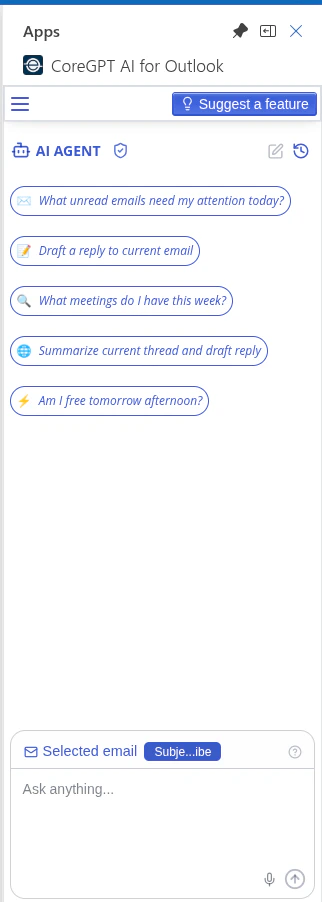
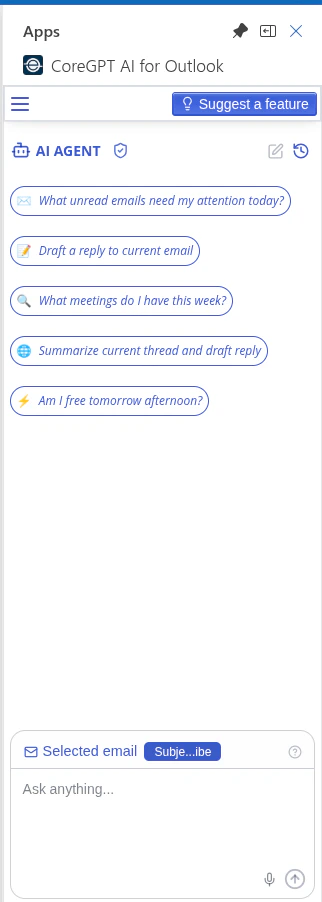
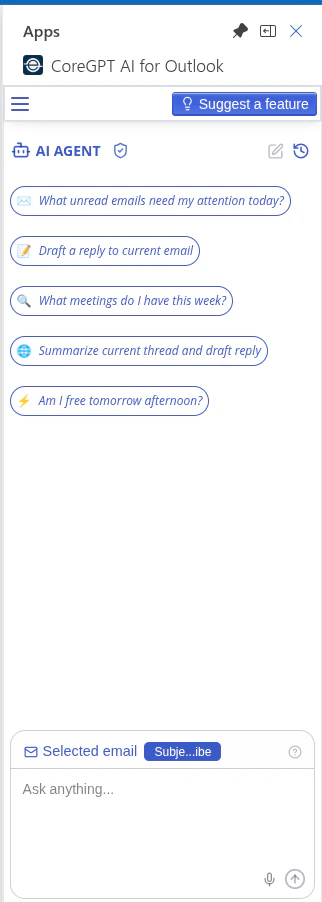
Click the CoreGPT AI for Outlook icon. The panel opens on the right side.
Your first action — Summarize a thread
Once the panel is open:1
Make sure an email is selected
Click on any email thread — the longer the better for this test.
2
Click Summarize thread
Find the Summarize thread button in the CoreGPT panel and click it.
3
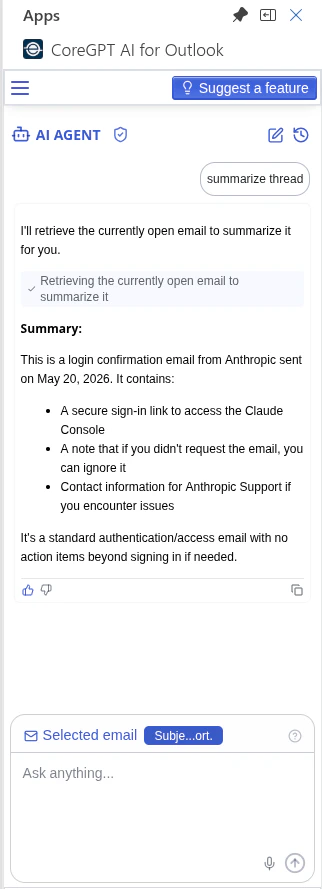
Get your summary in 3 seconds
The AI reads the entire thread and returns a clean bullet-point summary.
Can’t find the icon?
The icon isn't showing in the toolbar
The icon isn't showing in the toolbar
The icon only appears when an email is open. Make sure you’ve clicked on an email to open it — it won’t appear in the inbox list view.If you’re in Outlook desktop and still can’t see it, check under More commands (…) in the ribbon, or go to Home → Apps → My Add-ins to confirm CoreGPT is enabled.
I see the icon but the panel won't open
I see the icon but the panel won't open
Try these steps:
- Refresh the page (OWA) or restart Outlook (desktop)
- Sign out of CoreGPT and sign back in
- Disable and re-enable the add-in from Manage Add-ins in Outlook settings
I'm on classic Outlook and can't find it
I'm on classic Outlook and can't find it
In classic Outlook, the button appears in the ribbon under the Home tab when reading an email. If you can’t see it, click the … (More commands) button at the end of the ribbon — it may be hidden due to screen width.
The panel opened but looks blank
The panel opened but looks blank
This usually means the add-in needs a moment to load. Wait 5–10 seconds and refresh. If it stays blank, sign out and back in from the CoreGPT panel.
Next steps
Explore all Outlook features
See everything CoreGPT AI for Outlook can do — drafting, tone improvement, translation, and more.
Pin the add-in
Keep the panel open as you switch between emails — no need to reopen it each time.