

Write Smarter with ChatGPT for Google Workspace — Google Docs
Transform your writing with AI assistance right inside Google Docs. From drafting to polishing, ChatGPT for Google Workspace helps you write better, faster.Key Features
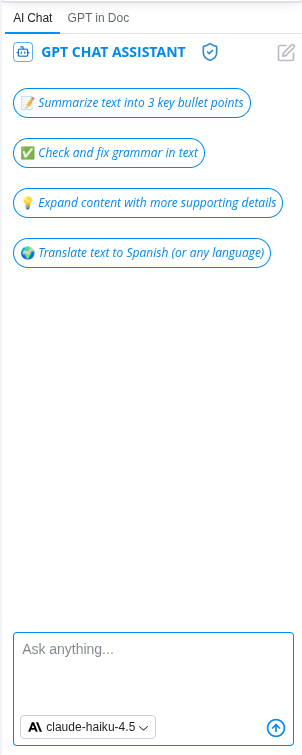
GPT Chat Assistant
An AI agent that works with your selected document content. Select any text in your document and ask the assistant to help you with custom requests or use pre-built actions. What you can do:- Ask custom questions about your content
- Rewrite text for different tones
- Summarize documents and sections
- Generate outlines and structure
- Translate to 100+ languages
- Improve clarity and grammar
- Expand ideas and brainstorm
- Create variations of content
- Generate new paragraphs
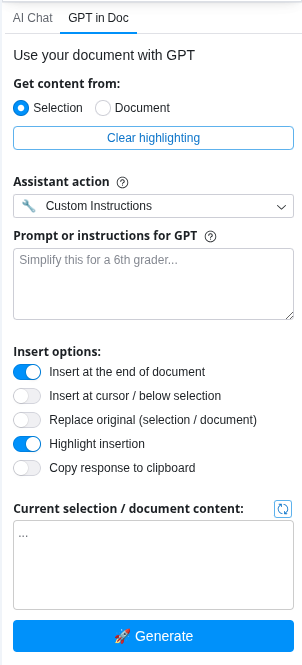
GPT Docs
Specialized document generation and enhancement features:- Generate complete documents from outlines
- Create structured reports with sections
- Build proposals with professional formatting
- Generate blog posts and articles
- Create meeting notes and summaries
- Build document templates
Common Use Cases
Blog Writing
- Generate an outline from your topic
- Write your first draft
- Use Smart Rewrite to improve tone
- Translate to reach global audiences
Professional Reports
- Create an outline
- Generate content sections
- Rewrite for professional tone
- Summarize key findings
Email & Communication
- Draft your message
- Rewrite for appropriate tone
- Check grammar and clarity
- Translate if needed
Content Localization
- Write in English
- Translate to target languages
- Adapt for local audiences
- Maintain brand voice
How to Use
1
Select your text
Highlight the text you want to work with, or position your cursor where you want to generate new content.
2
Open ChatGPT for Google Workspace
Click Extensions → ChatGPT for Google Workspace → 🚀 Launch GPT
3
Use pre-built actions or ask a question
- Click a pre-built action button (Rewrite, Summarize, Translate, Generate, Outline)
- Or type a custom question in the chat box (e.g., “Make this more professional” or “Expand this idea”)
4
Review the result
The assistant will process your selected text and provide results in the chat panel.
5
Copy or refine
Click Copy to copy the result, or ask follow-up questions to refine it before copying.
Tips & Best Practices
Use Pre-built Actions First
Start with pre-built actions for common tasks. They’re optimized for writing workflows.
Ask Follow-up Questions
The chat assistant remembers context. Ask follow-up questions to refine results without re-selecting text.
Be Specific in Custom Requests
Instead of “Make it better,” try “Rewrite in a professional tone for a client proposal.”
Combine Features
Generate content, then rewrite for tone, then translate for global reach.
Supported Languages
ChatGPT for Google Workspace supports 100+ languages including:- English, Spanish, French, German, Italian, Portuguese
- Chinese (Simplified & Traditional), Japanese, Korean
- Arabic, Hebrew, Hindi, Thai, Vietnamese
- And many more…
Example Requests
For Rewriting:- “Rewrite in a professional tone for a client proposal”
- “Make this more concise and clear”
- “Rewrite in a friendly, conversational style”
- “Summarize this section in 3 bullet points”
- “What are the key takeaways?”
- “Create an executive summary”
- “Generate an outline for a blog post about AI”
- “Expand this idea into a full paragraph”
- “Create 3 variations of this sentence”
- “Translate this to Spanish”
- “Convert to French and maintain professional tone”
- “Translate to German”
Troubleshooting
The generated text doesn't match my style
The generated text doesn't match my style
Try being more specific in your request. For example:
- “Rewrite in the style of a technical blog post”
- “Use simple language for a general audience”
- “Write in an academic tone”
The outline doesn't have enough detail
The outline doesn't have enough detail
Try providing more context. Instead of just keywords, describe your topic more fully:
- “Create an outline for a blog post about AI in healthcare, covering benefits, challenges, and future trends”
Translation isn't perfect
Translation isn't perfect
AI translations are good but not perfect. Always review translated content for:
- Accuracy of meaning
- Appropriate tone
- Cultural context
The chat assistant won't open
The chat assistant won't open
Try these steps:
- Refresh your browser or app
- Sign out and sign back in
- Clear your browser cache
- Try a different browser
Privacy & Security
Your documents are safe:- We never store your documents or content
- All processing is encrypted
- Your data stays in your Google account
- We don’t use your content to train models
Next Steps
Explore Other Apps
Learn about ChatGPT for Google Workspace in Sheets, Slides, and Forms.
Get Help
Find answers to common questions.