

Create Stunning Presentations Faster
Build polished, engaging presentations in minutes instead of hours. ChatGPT for Google Workspace helps you create compelling content and beautiful designs.Key Features
GPT Chat Assistant
An AI agent that works with your selected slide content. Select any text on your slides and ask the assistant to help you with custom requests or use pre-built actions. What you can do:- Ask custom questions about your content
- Generate slide content and titles
- Create speaker notes automatically
- Rewrite for different tones
- Translate slides to 100+ languages
- Improve clarity and engagement
- Generate bullet points and descriptions
- Create call-to-action text
- Organize presentation flow
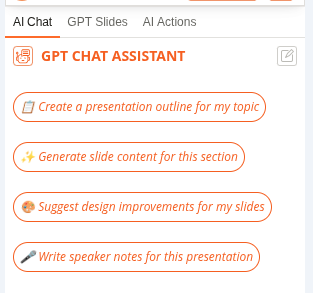
Pre-built Actions
Quick actions for common presentation tasks:- Generate Content - Create slide text
- Generate Speaker Notes - Create talking points
- Rewrite - Improve tone and clarity
- Translate - Convert to another language
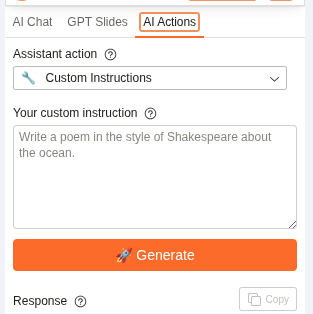
Smart Designer
Intelligent design and formatting features:- Apply consistent design themes across slides
- Auto-adjust fonts, colors, and layouts
- Maintain brand consistency
- Create professional-looking presentations
- Optimize slide layouts for readability
- Generate visually appealing designs
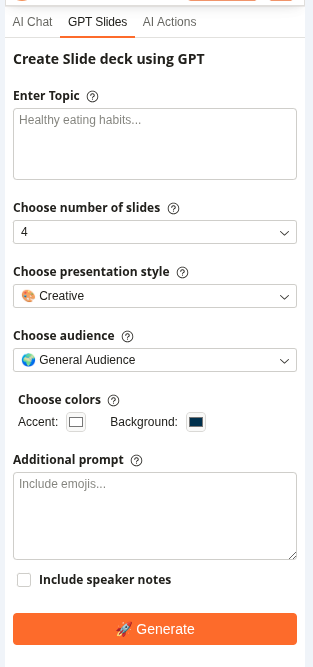
Common Use Cases
Business Presentations
- Create slide outline
- Generate content for each slide
- Use Smart Designer for professional look
- Generate speaker notes for delivery
Sales Pitches
- Create pitch structure
- Generate compelling content
- Design professional slides
- Prepare speaker notes
Educational Presentations
- Create course outline
- Generate educational content
- Design clear, engaging slides
- Create speaker notes for teaching
Conference Talks
- Organize presentation flow
- Generate engaging content
- Design professional slides
- Prepare detailed speaker notes
How to Use
1
Select your slide content
Click on the text or slide you want to work with.
2
Open ChatGPT for Google Workspace
Click Extensions → ChatGPT for Google Workspace → 🚀 Launch GPT
3
Use pre-built actions or ask a question
- Click a pre-built action button (Generate Content, Generate Speaker Notes, Rewrite, Translate)
- Or type a custom question in the chat box (e.g., “Create a compelling title for this slide” or “Generate speaker notes”)
4
Review the result
The assistant will process your selected content and provide results in the chat panel.
5
Copy or refine
Click Copy to copy the result, or ask follow-up questions to refine it before copying.
Tips & Best Practices
Start with Outline
Create a slide outline first, then use ChatGPT for Google Workspace to generate content for each slide.
Generate Speaker Notes
Always generate speaker notes to help you deliver your presentation confidently.
Use Consistent Design
Use Smart Designer to maintain consistent branding across all slides.
Keep It Simple
Use bullet points and short sentences. Let speaker notes carry the detail.
Supported Languages
ChatGPT for Google Workspace supports 100+ languages including:- English, Spanish, French, German, Italian, Portuguese
- Chinese (Simplified & Traditional), Japanese, Korean
- Arabic, Hebrew, Hindi, Thai, Vietnamese
- And many more…
Slide Design Tips
Good slide design:- ✅ One main idea per slide
- ✅ Bullet points (not paragraphs)
- ✅ Clear, readable fonts
- ✅ Consistent colors and themes
- ✅ Relevant visuals
Troubleshooting
The generated content is too long for my slide
The generated content is too long for my slide
Try being more specific:
- “Generate 3 bullet points about…”
- “Create a short, punchy title”
- “Write a one-sentence summary”
The speaker notes are too brief
The speaker notes are too brief
Ask for more detail:
- “Generate detailed speaker notes with examples”
- “Create comprehensive talking points”
- “Write speaker notes with transitions between slides”
The design doesn't match my brand
The design doesn't match my brand
You can customize the design after applying Smart Designer:
- Change colors manually
- Adjust fonts
- Add your logo
- Modify layouts
Privacy & Security
Your presentations are safe:- We never store your presentations or content
- All processing is encrypted
- Your data stays in your Google account
- We don’t use your content to train models
Next Steps
Explore Other Apps
Learn about ChatGPT for Google Workspace in Forms.
Get Help
Find answers to common questions.