

Supercharge Your Spreadsheets
Transform your data in seconds, not hours. ChatGPT for Google Workspace handles the heavy lifting — from generating formulas to making sense of complex data.Key Features
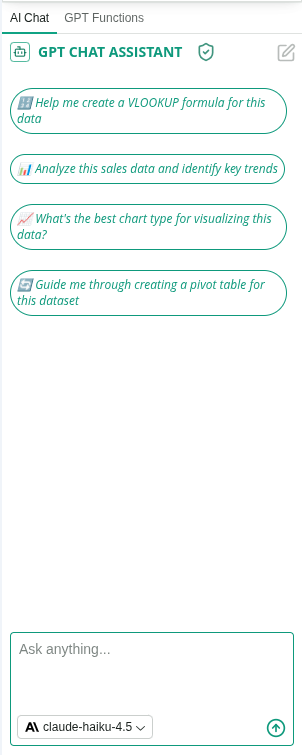
GPT Chat Assistant
An AI agent that works with your selected spreadsheet content. Select any cells or data and ask the assistant to help you with custom requests or use pre-built actions. What you can do:- Ask custom questions about your data
- Classify and categorize data automatically
- Summarize data ranges and insights
- Generate formulas from descriptions
- Analyze trends and patterns
- Extract key insights
- Create reports and summaries
- Organize and structure data
Custom GPT Functions
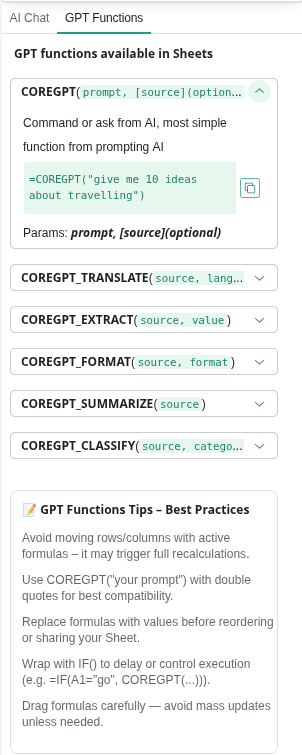
Use AI-powered custom functions directly in your spreadsheet cells:- COREGPT() - Ask AI anything about your data with custom prompts
- COREGPT_TRANSLATE() - Translate cell content to any language
- COREGPT_EXTRACT() - Extract specific information from text
- COREGPT_FORMAT() - Reformat text to your desired format
- COREGPT_SUMMARIZE() - Summarize cell content automatically
- COREGPT_CLASSIFY() - Classify text into categories you define
Common Use Cases
Sales Pipeline Management
- Import sales leads
- Use Classify to tag by priority
- Summarize pipeline status
- Generate reports for management
Survey Analysis
- Collect survey responses
- Use Classify to categorize answers
- Summarize key findings
- Generate insights report
Financial Tracking
- Create expense spreadsheet
- Use Classify to categorize expenses
- Generate SUM formulas automatically
- Summarize spending by category
Project Management
- Track project tasks
- Use Classify to organize by status
- Generate formulas for progress tracking
- Summarize project status
How to Use
1
Select your data
Highlight the cells or column you want to work with.
2
Open ChatGPT for Google Workspace
Click Extensions → ChatGPT for Google Workspace → 🚀 Launch GPT
3
Use pre-built actions or ask a question
- Click a pre-built action button (Classify, Summarize, Generate Formula, Analyze)
- Or type a custom question in the chat box (e.g., “Categorize these by priority” or “Generate a SUM formula”)
4
Review the result
The assistant will process your selected data and provide results in the chat panel.
5
Copy or refine
Click Copy to copy the result, or ask follow-up questions to refine it before copying.
Tips & Best Practices
Use Pre-built Actions First
Start with pre-built actions for common tasks. They’re optimized for spreadsheet workflows.
Ask Follow-up Questions
The chat assistant remembers context. Ask follow-up questions to refine results without re-selecting data.
Be Specific in Custom Requests
Instead of “Analyze this,” try “Find trends in sales by month” or “Categorize by priority level.”
Test Formulas First
Always test generated formulas on a small data set before applying to large datasets.
Example Requests
For Classification:- “Categorize these by priority level”
- “Tag sales leads as hot, warm, or cold”
- “Classify survey responses by sentiment”
- “Summarize this data range in 3 key insights”
- “What are the main trends in this data?”
- “Extract key metrics from this dataset”
=COREGPT("What is the average of this data?", A1:A10)=COREGPT_TRANSLATE(A1, "Spanish")=COREGPT_EXTRACT(A1, "email address")=COREGPT_CLASSIFY(A1, "High Priority, Medium Priority, Low Priority")=COREGPT_SUMMARIZE(A1)=COREGPT_FORMAT(A1, "Title Case")
- “Find trends in sales by month”
- “Identify outliers in this dataset”
- “Analyze which products have highest profit margins”
Troubleshooting
The classification doesn't match my data
The classification doesn't match my data
Be more specific with your categories. Instead of “Classify,” try:
- “Classify as: Hot Lead, Warm Lead, Cold Lead based on engagement level”
- “Categorize by: Urgent, Important, Can Wait”
The custom function isn't working
The custom function isn't working
Check that:
- You’re using the correct function name (COREGPT, COREGPT_TRANSLATE, etc.)
- Your cell references are in quotes or use proper range syntax
- The function parameters match the required format
- You have an active internet connection
The summary is too brief/too long
The summary is too brief/too long
Try being more specific:
- “Summarize in 2-3 sentences”
- “Create a detailed summary with all key points”
- “Extract only the most important insights”
Privacy & Security
Your spreadsheets are safe:- We never store your data or spreadsheets
- All processing is encrypted
- Your data stays in your Google account
- We don’t use your data to train models
Next Steps
Explore Other Apps
Learn about ChatGPT for Google Workspace in Slides and Forms.
Get Help
Find answers to common questions.