

Organize Your Thoughts with AI
Capture ideas, summarize notes, and generate action items automatically. CoreGPT AI for OneNote helps you stay organized and never miss an important task.Key Features
GPT Chat Assistant
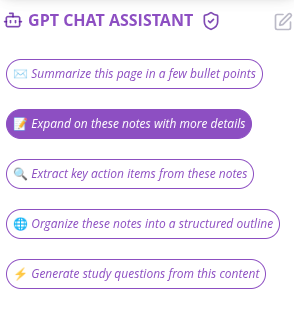
An AI agent that works with your selected note content. Select any text in your notes and ask the assistant to help you with custom requests or use pre-built actions. What you can do:- Ask custom questions about your notes
- Summarize notes in bullet points
- Generate action items from notes
- Extract key takeaways
- Organize and structure content
- Improve note clarity
- Fix grammar and formatting
- Translate notes to any language
- Create task lists
Action Item Generation
Automatically extract action items and tasks from your notes with assigned owners and deadlines. What you can do:- Generate action items from notes automatically
- Identify tasks and deadlines
- Assign responsibilities to team members
- Create task lists with priorities
- Track follow-ups and next steps
Common Use Cases
Meeting Notes
- Take notes during meeting
- Summarize key points
- Extract action items
- Assign responsibilities
- Share with team
Project Planning
- Capture project ideas
- Organize by topic
- Generate task list
- Assign deadlines
- Track progress
Research & Learning
- Capture research notes
- Summarize key findings
- Organize by topic
- Create study guides
- Review for exams
Personal Organization
- Capture daily notes
- Summarize important info
- Generate to-do lists
- Track goals
- Review progress
How to Use
1
Select your notes
Highlight the text or section you want to work with.
2
Open GPT Chat Assistant
Click the GPT Chat Assistant icon in OneNote.
3
Ask a question or request
Type a custom question in the chat box (e.g., “What are the main points?” or “Extract all action items”)
4
Review the result
The assistant will process your selected notes and provide results in the chat panel.
5
Copy or refine
Click Copy to copy the result, or ask follow-up questions to refine it before copying.
Tips & Best Practices
Use Pre-built Actions First
Start with pre-built actions for common tasks. They’re optimized for note-taking workflows.
Ask Follow-up Questions
The chat assistant remembers context. Ask follow-up questions to refine results without re-selecting text.
Be Specific in Custom Requests
Instead of “Improve this,” try “Make this more concise” or “Organize by priority.”
Always Review
Always review generated summaries and action items to ensure accuracy.
Note-Taking Best Practices
Good note structure:- ✅ Clear headings
- ✅ Bullet points
- ✅ Key takeaways highlighted
- ✅ Action items marked
- ✅ Dates and deadlines noted
Meeting Note Template
Use this structure for better results:Example Requests
For Summaries:- “Summarize this meeting in 3 bullet points”
- “What are the key decisions?”
- “Extract all important information”
- “Generate action items from these notes”
- “Extract all tasks and deadlines”
- “Create a task list with owners”
- “Organize by: Decisions, Action Items, Follow-ups”
- “Create an outline with main topics”
- “Structure by priority and deadline”
- “Make this more concise”
- “Improve clarity and formatting”
- “Fix grammar and structure”
Troubleshooting
The summary is too brief
The summary is too brief
Ask for more detail:
- “Create a detailed summary with all key points”
- “Summarize in 3-4 paragraphs”
- “Extract all important information”
Action items are missing
Action items are missing
Make sure your notes clearly identify tasks:
- Use phrases like “needs to”, “should”, “must”
- Assign owners and deadlines
- Mark action items clearly
The organization doesn't match my needs
The organization doesn't match my needs
Try being more specific:
- “Organize by: Decisions, Action Items, Follow-ups”
- “Create outline with main topics and subtopics”
- “Structure by priority and deadline”
The chat assistant won't open
The chat assistant won't open
Try these steps:
- Refresh your browser or app
- Sign out and sign back in
- Clear your browser cache
- Try a different browser
Privacy & Security
Your notes are safe:- We never store your notes or content
- All processing is encrypted
- Your data stays in your OneNote account
- We don’t use your notes to train models
Next Steps
Explore Other Microsoft 365 Apps
Learn about CoreGPT AI for Outlook, Word, Excel, PowerPoint, and Teams.
Get Help
Find answers to common questions.