

Write Smarter with CoreGPT AI for Word
AI-powered writing assistance right inside Microsoft Word. CoreGPT AI for Word gives you two tools: a free-form AI Chat and a powerful GPT in Doc feature that processes your document content and inserts results directly into your document.Key Features
AI Chat
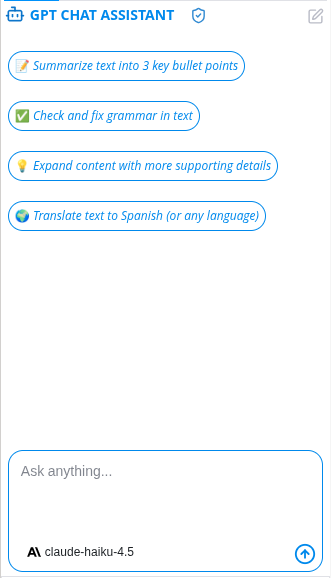
A free-form chat assistant that works with your selected text. Select any content in your document, then ask the assistant anything about it — or start a conversation from scratch. What you can do:- Ask custom questions about your document
- Get writing suggestions and ideas
- Brainstorm and explore topics
- Ask follow-up questions to refine results
- Copy any response to your clipboard
GPT in Doc
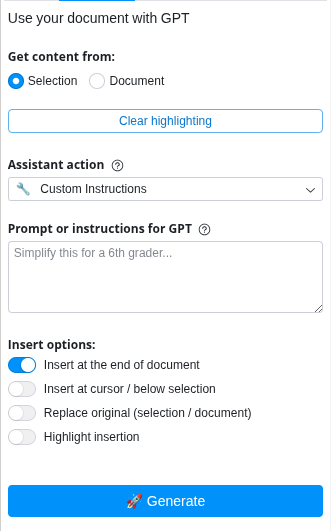
A document-aware AI tool that processes your selected text or full document and inserts the result directly back into Word. Choose an action from the dropdown, then click Generate. Available actions:- Custom Instructions — give any instruction to the AI
- Summarize — condense your text into key points
- Rephrase — reword content while keeping the meaning
- Enhance Writing — improve clarity, flow, and style
- Fix Grammar — correct grammar and spelling errors
- Explain — get a plain-language explanation of your content
- Translate — translate to 100+ languages
- Adjust Tone — change the tone (e.g. professional, casual, friendly)
- Selection — process only the highlighted text
- Document — process the entire document
- At the end of the document
- At cursor position
- Replace the original selection
- Highlight the inserted text (optional)
How to Use
Using AI Chat
1
Open CoreGPT AI for Word
Click Home → CoreGPT AI for Word to open the sidebar.
2
Select the AI Chat tab
Click the AI Chat tab at the top of the sidebar.
3
Select text (optional)
Highlight text in your document to give the assistant context about what you’re working on.
4
Type your question
Type your request in the chat box and press Enter (e.g., “How can I improve this paragraph?” or “Give me 3 alternative openings”).
5
Copy the result
Click Copy on any response to copy it to your clipboard.
Using GPT in Doc
1
Open CoreGPT AI for Word
Click Home → CoreGPT AI for Word to open the sidebar.
2
Select the GPT in Doc tab
Click the GPT in Doc tab at the top of the sidebar.
3
Choose your content source
Select Selection to process highlighted text, or Document to process the full document.
4
Choose an action
Pick an action from the dropdown (e.g., Summarize, Translate, Fix Grammar).
5
Set insert options
Choose where the result should be inserted — at the end, at cursor, or replacing the original.
6
Click Generate
Click 🚀 Generate. The result streams directly into your Word document.
Tips & Best Practices
Use GPT in Doc for Bulk Edits
GPT in Doc inserts results directly into your document — ideal for rewriting, translating, or fixing grammar across large sections.
Use AI Chat for Ideas
AI Chat is great for brainstorming, exploring options, and asking follow-up questions before committing to a change.
Highlight Insertions
Turn on the Highlight Insertion option to easily spot what the AI added, then clear the highlights when you’re done reviewing.
Be Specific with Adjust Tone
When using Adjust Tone, describe the tone you want — e.g., “formal and concise” or “friendly and conversational.”
Supported Languages
CoreGPT AI for Word supports 100+ languages including:- English, Spanish, French, German, Italian, Portuguese
- Chinese (Simplified & Traditional), Japanese, Korean
- Arabic, Hebrew, Hindi, Thai, Vietnamese
- And many more…
Example Requests
In AI Chat:- “Give me 3 ways to open this report more compellingly”
- “What’s missing from this proposal?”
- “Suggest a stronger conclusion for this section”
- “Rewrite this in a professional tone for a client proposal”
- “Make this more concise — cut it by half”
- “Add a brief introduction before this section”
- Select text → choose Translate → pick Spanish, French, German, or any language
Troubleshooting
The result doesn't match what I wanted
The result doesn't match what I wanted
Try using Custom Instructions with a more specific prompt. For example, instead of using Rephrase, type: “Rewrite this in a formal tone suitable for a legal document.”
The result was inserted in the wrong place
The result was inserted in the wrong place
Check your Insert Options before clicking Generate. Make sure the correct option is selected (At Cursor, Replace Original, or End of Document).
Translation isn't perfect
Translation isn't perfect
AI translations are good but not perfect. Always review translated content for accuracy of meaning, appropriate tone, and cultural context. Make manual edits as needed.
Privacy & Security
Your documents are safe:- We never store your documents or content
- All processing is encrypted
- Your data stays in your Word account
- We don’t use your content to train models
Next Steps
Explore Other Microsoft 365 Apps
Learn about CoreGPT AI for Outlook, Excel, PowerPoint, OneNote, and Teams.
Get Help
Find answers to common questions.