

Communicate Smarter in Teams
Write better messages, summarize conversations, and boost collaboration with AI assistance. CoreGPT AI MeetSync helps you communicate more effectively without leaving your chat.Key Features
GPT Chat Assistant
An AI agent that works with your selected message content. Select any message or text and ask the assistant to help you with custom requests or use pre-built actions. What you can do:- Ask custom questions about messages
- Summarize conversations in bullet points
- Draft professional messages
- Extract key decisions and action items
- Improve message clarity and tone
- Translate messages to any language
- Generate reply suggestions
- Create announcements
- Refine message tone
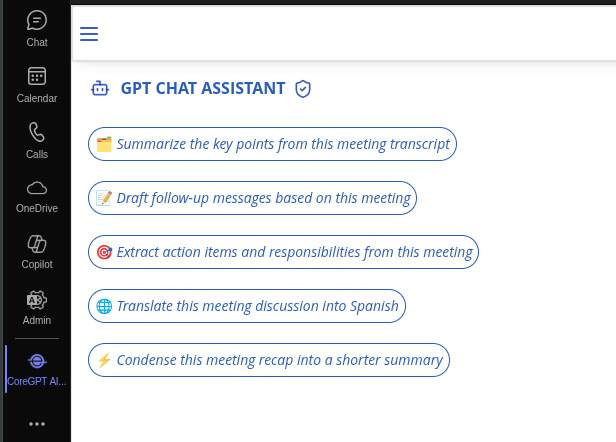
Conversation Summarization
Instantly summarize long Teams conversations to understand key points and decisions without reading every message. What you can do:- Summarize conversations in bullet points
- Extract key decisions and agreements
- Identify action items from discussions
- Understand context quickly
- Catch up on channel discussions efficiently
Common Use Cases
Team Communication
- Draft important announcements
- Rewrite for appropriate tone
- Review before sending
- Maintain team alignment
Project Updates
- Summarize project discussions
- Extract key decisions
- Identify action items
- Share with stakeholders
Cross-team Collaboration
- Draft clear messages
- Ensure professional tone
- Summarize discussions
- Maintain communication clarity
Quick Responses
- Generate reply suggestions
- Maintain conversation flow
- Save time on routine messages
- Stay responsive
How to Use
1
Select your message or conversation
Click on a message to select it, or highlight text in the message box.
2
Open GPT Chat Assistant
Click the GPT Chat Assistant icon in the message area.
3
Ask a question or request
Type a custom question in the chat box (e.g., “What are the main points?” or “Make this more professional”)
4
Review the result
The assistant will process your selected message and provide results in the chat panel.
5
Copy or refine
Click Copy to copy the result, or ask follow-up questions to refine it before copying.
Tips & Best Practices
Use Pre-built Actions First
Start with pre-built actions for common tasks. They’re optimized for Teams workflows.
Ask Follow-up Questions
The chat assistant remembers context. Ask follow-up questions to refine results without re-selecting text.
Be Specific in Custom Requests
Instead of “Draft a message,” try “Draft a professional update about project progress.”
Always Review
Always review generated messages before sending. Make sure they match your voice and intent.
Example Requests
For Drafting:- “Draft a professional message about a project delay”
- “Write a friendly message to welcome a new team member”
- “Create a formal announcement about policy changes”
- “Summarize this conversation in 3 bullet points”
- “What are the key decisions?”
- “Extract all action items from this discussion”
- “Make this more professional”
- “Rewrite in a warmer, more personal tone”
- “Simplify the language for clarity”
- “Generate a quick reply to this message”
- “Draft a response that acknowledges the concern”
- “Create a helpful reply with next steps”
Troubleshooting
The assistant isn't giving me what I want
The assistant isn't giving me what I want
Be more specific in your request. Instead of “Draft a message,” try:
- “Draft a professional message about a project delay”
- “Write a friendly message to welcome a new team member”
- “Create a formal announcement about policy changes”
The summary is missing important details
The summary is missing important details
Ask for more detail:
- “Summarize the conversation with all key decisions”
- “Extract all action items from this discussion”
- “Create a detailed summary of the conversation”
The chat assistant won't open
The chat assistant won't open
Try these steps:
- Refresh your browser or app
- Sign out and sign back in
- Clear your browser cache
- Try a different browser
Can I use the assistant while composing?
Can I use the assistant while composing?
Yes! Open the assistant while composing a new message and ask it to help draft, improve, or translate your message.
Teams Best Practices
Good Teams communication:- ✅ Clear, concise messages
- ✅ Appropriate tone for audience
- ✅ Use threads for organization
- ✅ Mark important messages
- ✅ Respect notification settings
Privacy & Security
Your Teams messages are safe:- We never store your messages or content
- All processing is encrypted
- Your data stays in your Teams account
- We don’t use your messages to train models
Next Steps
Explore Other Microsoft 365 Apps
Learn about CoreGPT AI for Outlook, Word, Excel, PowerPoint, and OneNote.
Get Help
Find answers to common questions.