

Create Presentations Faster with CoreGPT AI for PowerPoint
AI-powered presentation creation right inside Microsoft PowerPoint. CoreGPT AI for PowerPoint gives you two tools: GPT Slides — which generates a complete presentation from a topic — and a free-form AI Chat assistant for refining your content.Key Features
GPT Slides
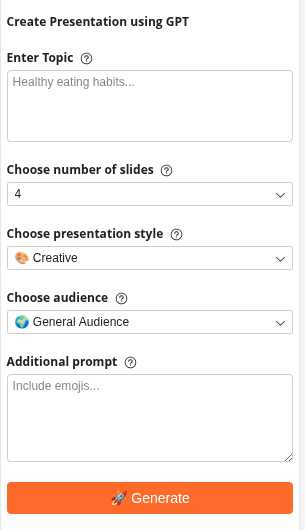
Generate a full slide deck from scratch. Just enter your topic, choose your options, and the AI builds the entire presentation directly inside PowerPoint. What you configure:- Topic — describe the subject of your presentation
- Number of slides — choose between 1 and 10 slides
- Presentation style — pick the visual and content style:
- 💼 Professional
- 🧢 Casual
- 🎓 Academic
- 🎨 Creative
- 🧊 Minimal
- Target audience — choose who the presentation is for:
- 🌍 General Audience
- 👔 Executives
- 📚 Students
- 🧠 Technical Experts
- 🧒 Children
- Additional prompt — optional extra instructions (e.g., “include emojis”, “focus on cost savings”, “add a Q&A slide”)
AI Chat
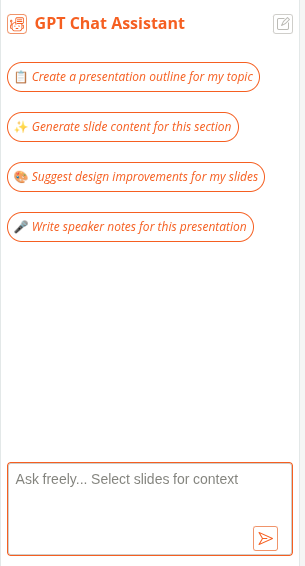
A free-form chat assistant that works with your selected slide content. Select text on a slide, then ask the assistant to help you improve, rewrite, or expand it. What you can do:- Ask questions about your presentation content
- Get suggestions for slide improvements
- Rewrite text for a different audience or tone
- Generate speaker notes for a slide
- Brainstorm ideas for new slides
- Ask follow-up questions to refine results
- Copy any response to your clipboard
- “Create a presentation outline for my topic”
- “Generate slide content for this section”
- “Suggest design improvements for my slides”
- “Write speaker notes for this presentation”
How to Use
Using GPT Slides
1
Open CoreGPT AI for PowerPoint
Click Home → CoreGPT AI for PowerPoint to open the sidebar.
2
Select the GPT Slides tab
Click the GPT Slides tab at the top of the sidebar.
3
Enter your topic
Type the subject of your presentation in the Topic field (e.g., “Healthy eating habits for busy professionals”).
4
Choose your options
Set the number of slides, presentation style, and target audience. Add any extra instructions in the Additional Prompt field if needed.
5
Click Generate
Click 🚀 Generate. The slides are created and inserted into your PowerPoint file one by one as they stream in.
Using AI Chat
1
Open CoreGPT AI for PowerPoint
Click Home → CoreGPT AI for PowerPoint to open the sidebar.
2
Select the AI Chat tab
Click the AI Chat tab at the top of the sidebar.
3
Select slide content (optional)
Click on a slide or highlight text to give the assistant context about what you’re working on.
4
Type your question
Type your request in the chat box and press Enter (e.g., “Write speaker notes for this slide” or “Make this more concise for executives”).
5
Copy the result
Click Copy on any response to copy it to your clipboard, then paste it into your slide.
Tips & Best Practices
Match Style to Your Audience
Choose the right style and audience combination — a “Minimal + Executives” deck looks very different from a “Creative + Students” one.
Use Additional Prompt for Details
The Additional Prompt field is powerful. Add specific instructions like “include a timeline slide”, “use bullet points only”, or “add statistics where relevant.”
Refine with AI Chat
After generating slides with GPT Slides, switch to AI Chat to refine individual slides — improve wording, adjust tone, or add speaker notes.
Start with More Slides
Generate more slides than you need, then delete the ones that don’t fit. It’s faster than generating too few and adding more later.
Example Topics
Business:- “Q3 sales performance review for the executive team”
- “Product roadmap for 2025 — technical audience”
- “Introduction to machine learning for students”
- “Climate change causes and solutions — general audience”
- “New employee onboarding overview”
- “Team project update — casual style”
Troubleshooting
The generated slides don't match my expectations
The generated slides don't match my expectations
Try adding more detail to the Topic field and use the Additional Prompt to give specific instructions. For example: “Focus on the financial benefits, include 2 case study slides, and end with a call to action.”
The presentation stopped generating mid-way
The presentation stopped generating mid-way
This can happen with connection interruptions. Try generating again — you can delete the partially created slides first. Make sure you have a stable internet connection.
Can I edit the slides after they're generated?
Can I edit the slides after they're generated?
Yes! The slides are inserted as normal PowerPoint slides. You can edit text, change layouts, add images, and modify anything just like any other slide.
Privacy & Security
Your presentations are safe:- We never store your presentations or content
- All processing is encrypted
- Your data stays in your PowerPoint account
- We don’t use your content to train models
Next Steps
Explore Other Microsoft 365 Apps
Learn about CoreGPT AI for Outlook, Word, Excel, OneNote, and Teams.
Get Help
Find answers to common questions.