

Supercharge Your Spreadsheets with CoreGPT AI for Excel
AI-powered assistance right inside Microsoft Excel. CoreGPT AI for Excel gives you two tools: GPT Functions — custom Excel functions powered by AI that work directly in your cells — and a free-form AI Chat assistant.Key Features
GPT Functions
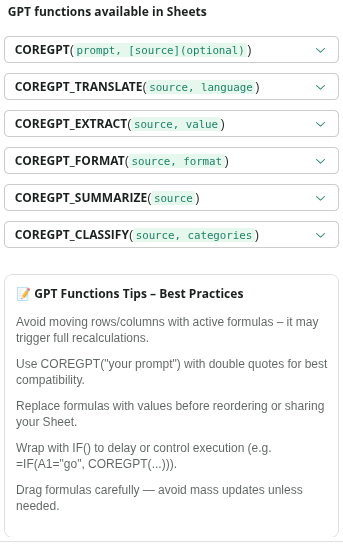
Custom Excel functions that bring AI directly into your spreadsheet formulas. Use them just like any built-in Excel function — type them in a cell and get AI-powered results instantly. Available functions:
Function examples:
=COREGPT("give me 10 ideas about travelling")=COREGPT_TRANSLATE("banana is yellow fruit", "French")=COREGPT_EXTRACT("please notify [email protected] every day", "email")=COREGPT_FORMAT("world is changing with technology", "capitalize")=COREGPT_SUMMARIZE("your long content here")=COREGPT_CLASSIFY("car", "home, vehicle, human")
AI Chat
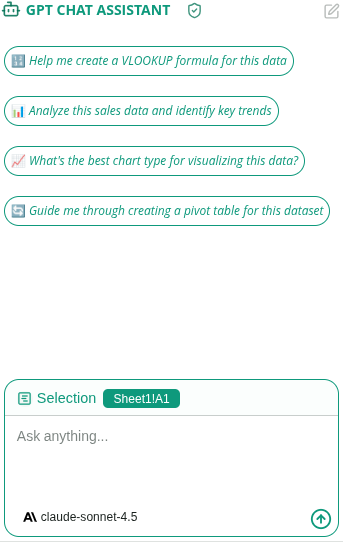
A free-form chat assistant that works with your selected cells. Select a range of data, then ask the assistant anything about it — or start a conversation from scratch. What you can do:- Ask questions about your selected data
- Get formula suggestions and explanations
- Analyze trends and patterns in your data
- Brainstorm ideas and approaches
- Ask follow-up questions to refine results
- Copy any response to your clipboard
How to Use
Using GPT Functions
1
Open a cell
Click on any empty cell where you want the AI result to appear.
2
Type a GPT function
Start typing
=COREGPT and Excel will show the available functions. Select the one you need.3
Fill in the parameters
Add your prompt or reference a cell containing the text you want to process. For example:
=COREGPT_CLASSIFY(A2, "positive, negative, neutral")4
Press Enter
The function runs and the AI result appears in the cell. Drag the formula down to apply it to multiple rows.
Using AI Chat
1
Open CoreGPT AI for Excel
Click Home → CoreGPT AI for Excel to open the sidebar.
2
Select the AI Chat tab
Click the AI Chat tab at the top of the sidebar.
3
Select cells (optional)
Highlight a range of cells to give the assistant context about what you’re working on.
4
Type your question
Type your request in the chat box and press Enter (e.g., “What trends do you see in this data?” or “How do I calculate a running total?”).
5
Copy the result
Click Copy on any response to copy it to your clipboard.
Tips & Best Practices
Apply Functions to Entire Columns
Enter a GPT function in one cell, then drag it down to apply it to hundreds of rows at once — great for bulk classification or translation.
Reference Cells in Functions
Instead of typing text directly, reference cells:
=COREGPT_SUMMARIZE(B2). This lets you process dynamic data automatically.Use COREGPT_CLASSIFY for Tagging
Define your own categories:
=COREGPT_CLASSIFY(A2, "urgent, normal, low priority") — perfect for tagging support tickets, feedback, or tasks.Use AI Chat for Formula Help
Not sure which function to use? Ask the AI Chat: “How do I extract the domain from an email address?” and get an explanation with examples.
Example Use Cases
Sentiment analysis on a column of reviews:=COREGPT_CLASSIFY(A2, "positive, negative, neutral")— drag down to classify all rows
=COREGPT_TRANSLATE(B2, "French")— drag down to translate all items
=COREGPT_EXTRACT(C2, "email address")
=COREGPT_SUMMARIZE(D2)— condense each entry into a short summary
Troubleshooting
The function returns an error
The function returns an error
Check these common issues:
- Make sure the cell reference is correct and not empty
- Verify you have an active internet connection
- Check that you’re signed in to the add-in
- Try refreshing the function by pressing F2 then Enter
The function result isn't what I expected
The function result isn't what I expected
Try being more specific in your prompt. For COREGPT_CLASSIFY, make sure your categories are clearly defined and separated by commas.
Can I use GPT functions on large datasets?
Can I use GPT functions on large datasets?
Yes! Each function call processes one cell at a time. For large datasets, apply the formula to the full column. Note that each cell uses credits, so large datasets will use more credits.
Privacy & Security
Your data is safe:- We never store your spreadsheets or data
- All processing is encrypted
- Your data stays in your Excel account
- We don’t use your data to train models
Next Steps
Explore Other Microsoft 365 Apps
Learn about CoreGPT AI for Outlook, Word, PowerPoint, OneNote, and Teams.
Get Help
Find answers to common questions.