> ## Documentation Index
> Fetch the complete documentation index at: https://help.coregptapps.com/llms.txt
> Use this file to discover all available pages before exploring further.
# CoreGPT AI for Word
> Write smarter with CoreGPT AI for Word. Rewrite, summarize, translate, fix grammar, and enhance your writing directly inside Microsoft Word. Free trial, no credit card required.
## Write Smarter with CoreGPT AI for Word
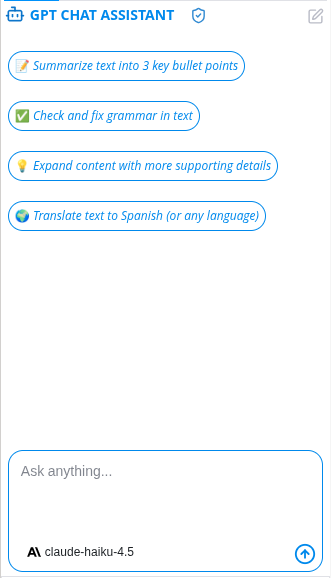
AI-powered writing assistance right inside Microsoft Word. CoreGPT AI for Word gives you two tools: a free-form **AI Chat** and a powerful **GPT in Doc** feature that processes your document content and inserts results directly into your document.
## Key Features
### AI Chat
A free-form chat assistant that works with your selected text. Select any content in your document, then ask the assistant anything about it — or start a conversation from scratch.
**What you can do:**
* Ask custom questions about your document
* Get writing suggestions and ideas
* Brainstorm and explore topics
* Ask follow-up questions to refine results
* Copy any response to your clipboard
 ### GPT in Doc
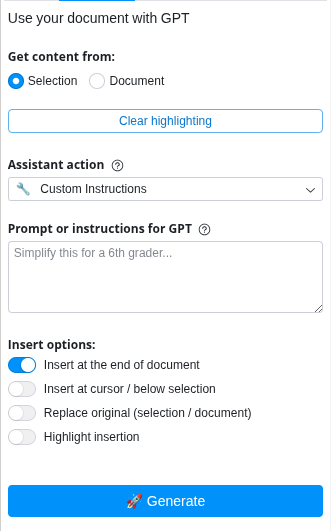
A document-aware AI tool that processes your selected text or full document and inserts the result directly back into Word. Choose an action from the dropdown, then click Generate.
**Available actions:**
* **Custom Instructions** — give any instruction to the AI
* **Summarize** — condense your text into key points
* **Rephrase** — reword content while keeping the meaning
* **Enhance Writing** — improve clarity, flow, and style
* **Fix Grammar** — correct grammar and spelling errors
* **Explain** — get a plain-language explanation of your content
* **Translate** — translate to 100+ languages
* **Adjust Tone** — change the tone (e.g. professional, casual, friendly)
**Content source options:**
* **Selection** — process only the highlighted text
* **Document** — process the entire document
**Insert options — choose where the result goes:**
* At the end of the document
* At cursor position
* Replace the original selection
* Highlight the inserted text (optional)
### GPT in Doc
A document-aware AI tool that processes your selected text or full document and inserts the result directly back into Word. Choose an action from the dropdown, then click Generate.
**Available actions:**
* **Custom Instructions** — give any instruction to the AI
* **Summarize** — condense your text into key points
* **Rephrase** — reword content while keeping the meaning
* **Enhance Writing** — improve clarity, flow, and style
* **Fix Grammar** — correct grammar and spelling errors
* **Explain** — get a plain-language explanation of your content
* **Translate** — translate to 100+ languages
* **Adjust Tone** — change the tone (e.g. professional, casual, friendly)
**Content source options:**
* **Selection** — process only the highlighted text
* **Document** — process the entire document
**Insert options — choose where the result goes:**
* At the end of the document
* At cursor position
* Replace the original selection
* Highlight the inserted text (optional)
 ## How to Use
### Using AI Chat
Click **Home** → **CoreGPT AI for Word** to open the sidebar.
Click the **AI Chat** tab at the top of the sidebar.
Highlight text in your document to give the assistant context about what you're working on.
Type your request in the chat box and press Enter (e.g., "How can I improve this paragraph?" or "Give me 3 alternative openings").
Click **Copy** on any response to copy it to your clipboard.
### Using GPT in Doc
Click **Home** → **CoreGPT AI for Word** to open the sidebar.
Click the **GPT in Doc** tab at the top of the sidebar.
Select **Selection** to process highlighted text, or **Document** to process the full document.
Pick an action from the dropdown (e.g., Summarize, Translate, Fix Grammar).
Choose where the result should be inserted — at the end, at cursor, or replacing the original.
Click **🚀 Generate**. The result streams directly into your Word document.
## Tips & Best Practices
GPT in Doc inserts results directly into your document — ideal for rewriting, translating, or fixing grammar across large sections.
AI Chat is great for brainstorming, exploring options, and asking follow-up questions before committing to a change.
Turn on the Highlight Insertion option to easily spot what the AI added, then clear the highlights when you're done reviewing.
When using Adjust Tone, describe the tone you want — e.g., "formal and concise" or "friendly and conversational."
## Supported Languages
CoreGPT AI for Word supports **100+ languages** including:
* English, Spanish, French, German, Italian, Portuguese
* Chinese (Simplified & Traditional), Japanese, Korean
* Arabic, Hebrew, Hindi, Thai, Vietnamese
* And many more...
## Example Requests
**In AI Chat:**
* "Give me 3 ways to open this report more compellingly"
* "What's missing from this proposal?"
* "Suggest a stronger conclusion for this section"
**In GPT in Doc — Custom Instructions:**
* "Rewrite this in a professional tone for a client proposal"
* "Make this more concise — cut it by half"
* "Add a brief introduction before this section"
**In GPT in Doc — Translate:**
* Select text → choose Translate → pick Spanish, French, German, or any language
## Troubleshooting
Try using Custom Instructions with a more specific prompt. For example, instead of using Rephrase, type: "Rewrite this in a formal tone suitable for a legal document."
Check your Insert Options before clicking Generate. Make sure the correct option is selected (At Cursor, Replace Original, or End of Document).
AI translations are good but not perfect. Always review translated content for accuracy of meaning, appropriate tone, and cultural context. Make manual edits as needed.
Try these steps:
1. Close and reopen Microsoft Word
2. Sign out and sign back in
3. Check your internet connection
4. Reinstall the add-in if the issue persists
## Privacy & Security
Your documents are safe:
* We never store your documents or content
* All processing is encrypted
* Your data stays in your Word account
* We don't use your content to train models
## Next Steps
Learn about CoreGPT AI for Outlook, Excel, PowerPoint, OneNote, and Teams.
Find answers to common questions.
## How to Use
### Using AI Chat
Click **Home** → **CoreGPT AI for Word** to open the sidebar.
Click the **AI Chat** tab at the top of the sidebar.
Highlight text in your document to give the assistant context about what you're working on.
Type your request in the chat box and press Enter (e.g., "How can I improve this paragraph?" or "Give me 3 alternative openings").
Click **Copy** on any response to copy it to your clipboard.
### Using GPT in Doc
Click **Home** → **CoreGPT AI for Word** to open the sidebar.
Click the **GPT in Doc** tab at the top of the sidebar.
Select **Selection** to process highlighted text, or **Document** to process the full document.
Pick an action from the dropdown (e.g., Summarize, Translate, Fix Grammar).
Choose where the result should be inserted — at the end, at cursor, or replacing the original.
Click **🚀 Generate**. The result streams directly into your Word document.
## Tips & Best Practices
GPT in Doc inserts results directly into your document — ideal for rewriting, translating, or fixing grammar across large sections.
AI Chat is great for brainstorming, exploring options, and asking follow-up questions before committing to a change.
Turn on the Highlight Insertion option to easily spot what the AI added, then clear the highlights when you're done reviewing.
When using Adjust Tone, describe the tone you want — e.g., "formal and concise" or "friendly and conversational."
## Supported Languages
CoreGPT AI for Word supports **100+ languages** including:
* English, Spanish, French, German, Italian, Portuguese
* Chinese (Simplified & Traditional), Japanese, Korean
* Arabic, Hebrew, Hindi, Thai, Vietnamese
* And many more...
## Example Requests
**In AI Chat:**
* "Give me 3 ways to open this report more compellingly"
* "What's missing from this proposal?"
* "Suggest a stronger conclusion for this section"
**In GPT in Doc — Custom Instructions:**
* "Rewrite this in a professional tone for a client proposal"
* "Make this more concise — cut it by half"
* "Add a brief introduction before this section"
**In GPT in Doc — Translate:**
* Select text → choose Translate → pick Spanish, French, German, or any language
## Troubleshooting
Try using Custom Instructions with a more specific prompt. For example, instead of using Rephrase, type: "Rewrite this in a formal tone suitable for a legal document."
Check your Insert Options before clicking Generate. Make sure the correct option is selected (At Cursor, Replace Original, or End of Document).
AI translations are good but not perfect. Always review translated content for accuracy of meaning, appropriate tone, and cultural context. Make manual edits as needed.
Try these steps:
1. Close and reopen Microsoft Word
2. Sign out and sign back in
3. Check your internet connection
4. Reinstall the add-in if the issue persists
## Privacy & Security
Your documents are safe:
* We never store your documents or content
* All processing is encrypted
* Your data stays in your Word account
* We don't use your content to train models
## Next Steps
Learn about CoreGPT AI for Outlook, Excel, PowerPoint, OneNote, and Teams.
Find answers to common questions.