> ## Documentation Index
> Fetch the complete documentation index at: https://help.coregptapps.com/llms.txt
> Use this file to discover all available pages before exploring further.
# CoreGPT AI MeetSync for Teams
> Boost collaboration with AI-assisted messages in Microsoft Teams. Communicate smarter with CoreGPT AI MeetSync. Message drafting, conversation summarization, tone improvement.
## Communicate Smarter in Teams
Write better messages, summarize conversations, and boost collaboration with AI assistance. CoreGPT AI MeetSync helps you communicate more effectively without leaving your chat.
## Key Features
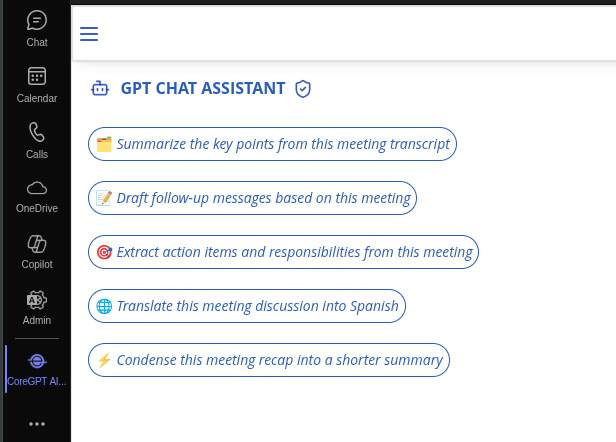
### GPT Chat Assistant
An AI agent that works with your selected message content. Select any message or text and ask the assistant to help you with custom requests or use pre-built actions.
**What you can do:**
* Ask custom questions about messages
* Summarize conversations in bullet points
* Draft professional messages
* Extract key decisions and action items
* Improve message clarity and tone
* Translate messages to any language
* Generate reply suggestions
* Create announcements
* Refine message tone
 ### Conversation Summarization
Instantly summarize long Teams conversations to understand key points and decisions without reading every message.
**What you can do:**
* Summarize conversations in bullet points
* Extract key decisions and agreements
* Identify action items from discussions
* Understand context quickly
* Catch up on channel discussions efficiently
## Common Use Cases
### Team Communication
1. Draft important announcements
2. Rewrite for appropriate tone
3. Review before sending
4. Maintain team alignment
### Project Updates
1. Summarize project discussions
2. Extract key decisions
3. Identify action items
4. Share with stakeholders
### Cross-team Collaboration
1. Draft clear messages
2. Ensure professional tone
3. Summarize discussions
4. Maintain communication clarity
### Quick Responses
1. Generate reply suggestions
2. Maintain conversation flow
3. Save time on routine messages
4. Stay responsive
## How to Use
Click on a message to select it, or highlight text in the message box.
Click the **GPT Chat Assistant** icon in the message area.
Type a custom question in the chat box (e.g., "What are the main points?" or "Make this more professional")
The assistant will process your selected message and provide results in the chat panel.
Click **Copy** to copy the result, or ask follow-up questions to refine it before copying.
## Tips & Best Practices
Start with pre-built actions for common tasks. They're optimized for Teams workflows.
The chat assistant remembers context. Ask follow-up questions to refine results without re-selecting text.
Instead of "Draft a message," try "Draft a professional update about project progress."
Always review generated messages before sending. Make sure they match your voice and intent.
## Example Requests
**For Drafting:**
* "Draft a professional message about a project delay"
* "Write a friendly message to welcome a new team member"
* "Create a formal announcement about policy changes"
**For Summaries:**
* "Summarize this conversation in 3 bullet points"
* "What are the key decisions?"
* "Extract all action items from this discussion"
**For Improvement:**
* "Make this more professional"
* "Rewrite in a warmer, more personal tone"
* "Simplify the language for clarity"
**For Replies:**
* "Generate a quick reply to this message"
* "Draft a response that acknowledges the concern"
* "Create a helpful reply with next steps"
## Troubleshooting
Be more specific in your request. Instead of "Draft a message," try:
* "Draft a professional message about a project delay"
* "Write a friendly message to welcome a new team member"
* "Create a formal announcement about policy changes"
Ask for more detail:
* "Summarize the conversation with all key decisions"
* "Extract all action items from this discussion"
* "Create a detailed summary of the conversation"
Try these steps:
1. Refresh your browser or app
2. Sign out and sign back in
3. Clear your browser cache
4. Try a different browser
Yes! Open the assistant while composing a new message and ask it to help draft, improve, or translate your message.
## Teams Best Practices
**Good Teams communication:**
* ✅ Clear, concise messages
* ✅ Appropriate tone for audience
* ✅ Use threads for organization
* ✅ Mark important messages
* ✅ Respect notification settings
## Privacy & Security
Your Teams messages are safe:
* We never store your messages or content
* All processing is encrypted
* Your data stays in your Teams account
* We don't use your messages to train models
## Next Steps
Learn about CoreGPT AI for Outlook, Word, Excel, PowerPoint, and OneNote.
Find answers to common questions.
### Conversation Summarization
Instantly summarize long Teams conversations to understand key points and decisions without reading every message.
**What you can do:**
* Summarize conversations in bullet points
* Extract key decisions and agreements
* Identify action items from discussions
* Understand context quickly
* Catch up on channel discussions efficiently
## Common Use Cases
### Team Communication
1. Draft important announcements
2. Rewrite for appropriate tone
3. Review before sending
4. Maintain team alignment
### Project Updates
1. Summarize project discussions
2. Extract key decisions
3. Identify action items
4. Share with stakeholders
### Cross-team Collaboration
1. Draft clear messages
2. Ensure professional tone
3. Summarize discussions
4. Maintain communication clarity
### Quick Responses
1. Generate reply suggestions
2. Maintain conversation flow
3. Save time on routine messages
4. Stay responsive
## How to Use
Click on a message to select it, or highlight text in the message box.
Click the **GPT Chat Assistant** icon in the message area.
Type a custom question in the chat box (e.g., "What are the main points?" or "Make this more professional")
The assistant will process your selected message and provide results in the chat panel.
Click **Copy** to copy the result, or ask follow-up questions to refine it before copying.
## Tips & Best Practices
Start with pre-built actions for common tasks. They're optimized for Teams workflows.
The chat assistant remembers context. Ask follow-up questions to refine results without re-selecting text.
Instead of "Draft a message," try "Draft a professional update about project progress."
Always review generated messages before sending. Make sure they match your voice and intent.
## Example Requests
**For Drafting:**
* "Draft a professional message about a project delay"
* "Write a friendly message to welcome a new team member"
* "Create a formal announcement about policy changes"
**For Summaries:**
* "Summarize this conversation in 3 bullet points"
* "What are the key decisions?"
* "Extract all action items from this discussion"
**For Improvement:**
* "Make this more professional"
* "Rewrite in a warmer, more personal tone"
* "Simplify the language for clarity"
**For Replies:**
* "Generate a quick reply to this message"
* "Draft a response that acknowledges the concern"
* "Create a helpful reply with next steps"
## Troubleshooting
Be more specific in your request. Instead of "Draft a message," try:
* "Draft a professional message about a project delay"
* "Write a friendly message to welcome a new team member"
* "Create a formal announcement about policy changes"
Ask for more detail:
* "Summarize the conversation with all key decisions"
* "Extract all action items from this discussion"
* "Create a detailed summary of the conversation"
Try these steps:
1. Refresh your browser or app
2. Sign out and sign back in
3. Clear your browser cache
4. Try a different browser
Yes! Open the assistant while composing a new message and ask it to help draft, improve, or translate your message.
## Teams Best Practices
**Good Teams communication:**
* ✅ Clear, concise messages
* ✅ Appropriate tone for audience
* ✅ Use threads for organization
* ✅ Mark important messages
* ✅ Respect notification settings
## Privacy & Security
Your Teams messages are safe:
* We never store your messages or content
* All processing is encrypted
* Your data stays in your Teams account
* We don't use your messages to train models
## Next Steps
Learn about CoreGPT AI for Outlook, Word, Excel, PowerPoint, and OneNote.
Find answers to common questions.