> ## Documentation Index
> Fetch the complete documentation index at: https://help.coregptapps.com/llms.txt
> Use this file to discover all available pages before exploring further.
# CoreGPT AI for PowerPoint
> Create full presentations from a single topic with CoreGPT AI for PowerPoint. Generate complete slide decks with GPT Slides, or use the AI Chat to refine and improve your content.
## Create Presentations Faster with CoreGPT AI for PowerPoint
AI-powered presentation creation right inside Microsoft PowerPoint. CoreGPT AI for PowerPoint gives you two tools: **GPT Slides** — which generates a complete presentation from a topic — and a free-form **AI Chat** assistant for refining your content.
## Key Features
### GPT Slides
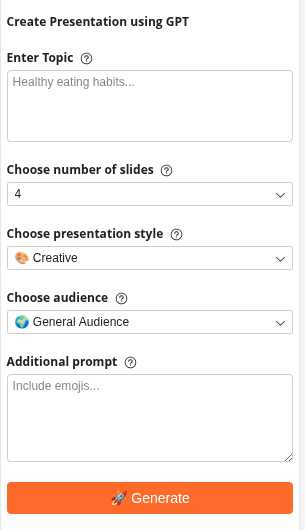
Generate a full slide deck from scratch. Just enter your topic, choose your options, and the AI builds the entire presentation directly inside PowerPoint.
**What you configure:**
* **Topic** — describe the subject of your presentation
* **Number of slides** — choose between 1 and 10 slides
* **Presentation style** — pick the visual and content style:
* 💼 Professional
* 🧢 Casual
* 🎓 Academic
* 🎨 Creative
* 🧊 Minimal
* **Target audience** — choose who the presentation is for:
* 🌍 General Audience
* 👔 Executives
* 📚 Students
* 🧠 Technical Experts
* 🧒 Children
* **Additional prompt** — optional extra instructions (e.g., "include emojis", "focus on cost savings", "add a Q\&A slide")
The slides are generated and inserted directly into your PowerPoint file as you watch.
 ### AI Chat
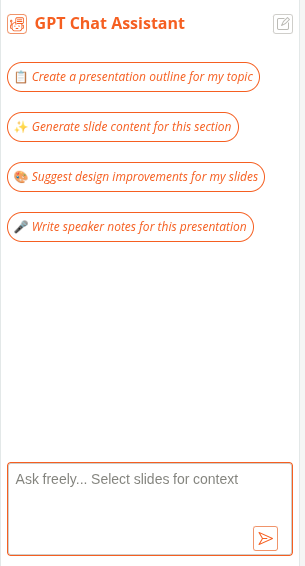
A free-form chat assistant that works with your selected slide content. Select text on a slide, then ask the assistant to help you improve, rewrite, or expand it.
**What you can do:**
* Ask questions about your presentation content
* Get suggestions for slide improvements
* Rewrite text for a different audience or tone
* Generate speaker notes for a slide
* Brainstorm ideas for new slides
* Ask follow-up questions to refine results
* Copy any response to your clipboard
**Example prompts shown in the app:**
* "Create a presentation outline for my topic"
* "Generate slide content for this section"
* "Suggest design improvements for my slides"
* "Write speaker notes for this presentation"
### AI Chat
A free-form chat assistant that works with your selected slide content. Select text on a slide, then ask the assistant to help you improve, rewrite, or expand it.
**What you can do:**
* Ask questions about your presentation content
* Get suggestions for slide improvements
* Rewrite text for a different audience or tone
* Generate speaker notes for a slide
* Brainstorm ideas for new slides
* Ask follow-up questions to refine results
* Copy any response to your clipboard
**Example prompts shown in the app:**
* "Create a presentation outline for my topic"
* "Generate slide content for this section"
* "Suggest design improvements for my slides"
* "Write speaker notes for this presentation"
 ## How to Use
### Using GPT Slides
Click **Home** → **CoreGPT AI for PowerPoint** to open the sidebar.
Click the **GPT Slides** tab at the top of the sidebar.
Type the subject of your presentation in the Topic field (e.g., "Healthy eating habits for busy professionals").
Set the number of slides, presentation style, and target audience. Add any extra instructions in the Additional Prompt field if needed.
Click **🚀 Generate**. The slides are created and inserted into your PowerPoint file one by one as they stream in.
### Using AI Chat
Click **Home** → **CoreGPT AI for PowerPoint** to open the sidebar.
Click the **AI Chat** tab at the top of the sidebar.
Click on a slide or highlight text to give the assistant context about what you're working on.
Type your request in the chat box and press Enter (e.g., "Write speaker notes for this slide" or "Make this more concise for executives").
Click **Copy** on any response to copy it to your clipboard, then paste it into your slide.
## Tips & Best Practices
Choose the right style and audience combination — a "Minimal + Executives" deck looks very different from a "Creative + Students" one.
The Additional Prompt field is powerful. Add specific instructions like "include a timeline slide", "use bullet points only", or "add statistics where relevant."
After generating slides with GPT Slides, switch to AI Chat to refine individual slides — improve wording, adjust tone, or add speaker notes.
Generate more slides than you need, then delete the ones that don't fit. It's faster than generating too few and adding more later.
## Example Topics
**Business:**
* "Q3 sales performance review for the executive team"
* "Product roadmap for 2025 — technical audience"
**Education:**
* "Introduction to machine learning for students"
* "Climate change causes and solutions — general audience"
**Internal:**
* "New employee onboarding overview"
* "Team project update — casual style"
## Troubleshooting
Try adding more detail to the Topic field and use the Additional Prompt to give specific instructions. For example: "Focus on the financial benefits, include 2 case study slides, and end with a call to action."
This can happen with connection interruptions. Try generating again — you can delete the partially created slides first. Make sure you have a stable internet connection.
Try these steps:
1. Close and reopen Microsoft PowerPoint
2. Sign out and sign back in
3. Check your internet connection
4. Reinstall the add-in if the issue persists
Yes! The slides are inserted as normal PowerPoint slides. You can edit text, change layouts, add images, and modify anything just like any other slide.
## Privacy & Security
Your presentations are safe:
* We never store your presentations or content
* All processing is encrypted
* Your data stays in your PowerPoint account
* We don't use your content to train models
## Next Steps
Learn about CoreGPT AI for Outlook, Word, Excel, OneNote, and Teams.
Find answers to common questions.
## How to Use
### Using GPT Slides
Click **Home** → **CoreGPT AI for PowerPoint** to open the sidebar.
Click the **GPT Slides** tab at the top of the sidebar.
Type the subject of your presentation in the Topic field (e.g., "Healthy eating habits for busy professionals").
Set the number of slides, presentation style, and target audience. Add any extra instructions in the Additional Prompt field if needed.
Click **🚀 Generate**. The slides are created and inserted into your PowerPoint file one by one as they stream in.
### Using AI Chat
Click **Home** → **CoreGPT AI for PowerPoint** to open the sidebar.
Click the **AI Chat** tab at the top of the sidebar.
Click on a slide or highlight text to give the assistant context about what you're working on.
Type your request in the chat box and press Enter (e.g., "Write speaker notes for this slide" or "Make this more concise for executives").
Click **Copy** on any response to copy it to your clipboard, then paste it into your slide.
## Tips & Best Practices
Choose the right style and audience combination — a "Minimal + Executives" deck looks very different from a "Creative + Students" one.
The Additional Prompt field is powerful. Add specific instructions like "include a timeline slide", "use bullet points only", or "add statistics where relevant."
After generating slides with GPT Slides, switch to AI Chat to refine individual slides — improve wording, adjust tone, or add speaker notes.
Generate more slides than you need, then delete the ones that don't fit. It's faster than generating too few and adding more later.
## Example Topics
**Business:**
* "Q3 sales performance review for the executive team"
* "Product roadmap for 2025 — technical audience"
**Education:**
* "Introduction to machine learning for students"
* "Climate change causes and solutions — general audience"
**Internal:**
* "New employee onboarding overview"
* "Team project update — casual style"
## Troubleshooting
Try adding more detail to the Topic field and use the Additional Prompt to give specific instructions. For example: "Focus on the financial benefits, include 2 case study slides, and end with a call to action."
This can happen with connection interruptions. Try generating again — you can delete the partially created slides first. Make sure you have a stable internet connection.
Try these steps:
1. Close and reopen Microsoft PowerPoint
2. Sign out and sign back in
3. Check your internet connection
4. Reinstall the add-in if the issue persists
Yes! The slides are inserted as normal PowerPoint slides. You can edit text, change layouts, add images, and modify anything just like any other slide.
## Privacy & Security
Your presentations are safe:
* We never store your presentations or content
* All processing is encrypted
* Your data stays in your PowerPoint account
* We don't use your content to train models
## Next Steps
Learn about CoreGPT AI for Outlook, Word, Excel, OneNote, and Teams.
Find answers to common questions.