> ## Documentation Index
> Fetch the complete documentation index at: https://help.coregptapps.com/llms.txt
> Use this file to discover all available pages before exploring further.
# Your first 30 seconds with CoreGPT AI for Outlook
> Find the CoreGPT icon in your Outlook toolbar and try your first AI action in under a minute.
## Where is the CoreGPT icon?
The add-in is already installed — you just need to find the icon. It lives in the **Outlook toolbar** when you have an email open.
 The icon only appears when you have an email open — it won't show in your inbox list view.
## Open the add-in
Click on an email in your inbox to open it.
Look for the **apps bar** at the top-right of the email — it shows small icons for your installed add-ins.
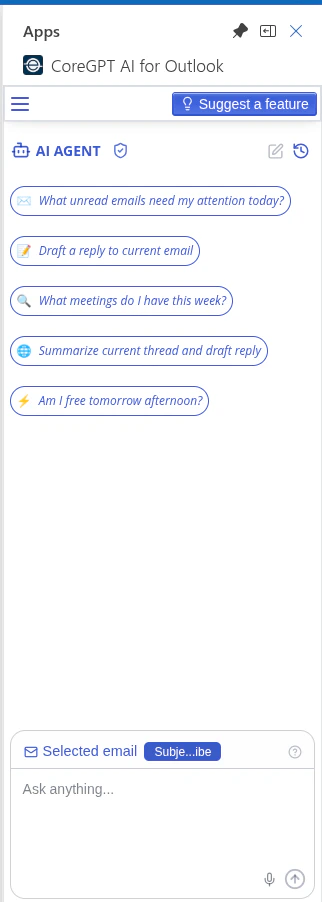
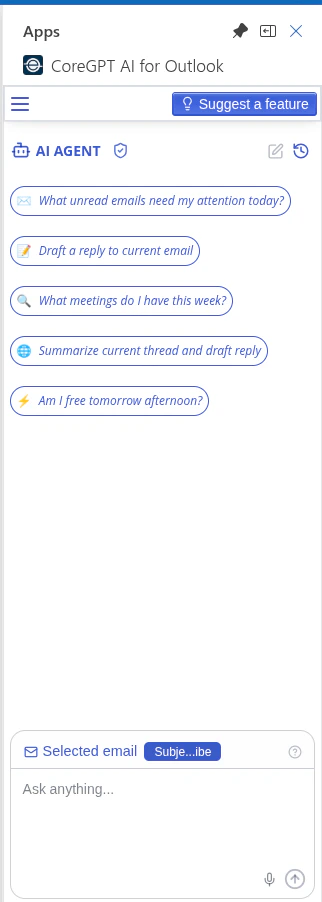
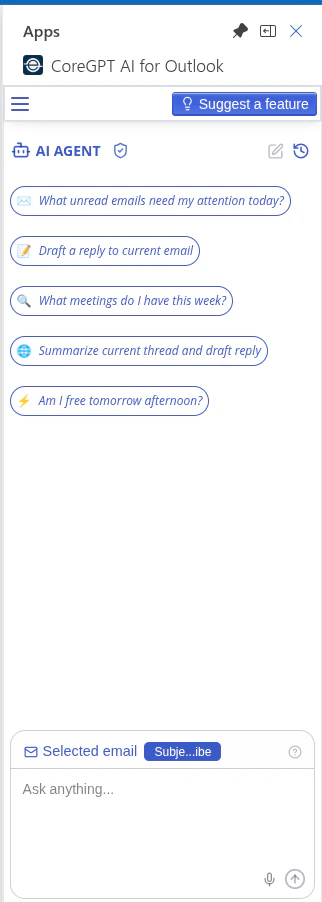
Click the **CoreGPT AI for Outlook** icon. The panel opens on the right side.
The icon only appears when you have an email open — it won't show in your inbox list view.
## Open the add-in
Click on an email in your inbox to open it.
Look for the **apps bar** at the top-right of the email — it shows small icons for your installed add-ins.
Click the **CoreGPT AI for Outlook** icon. The panel opens on the right side.
 Click on an email to open it in the reading pane.
In the **Home** tab ribbon, look for the **CoreGPT AI for Outlook** button. It may be under the **Apps** group or **More commands (…)**.
Click the button to open the add-in panel on the right.
Click on an email to open it in the reading pane.
In the **Home** tab ribbon, look for the **CoreGPT AI for Outlook** button. It may be under the **Apps** group or **More commands (…)**.
Click the button to open the add-in panel on the right.
 Double-click an email to open it in its own window, or select it so it appears in the reading pane.
In the **Home** or **Message** tab, look for **CoreGPT AI for Outlook** in the ribbon.
Click it to open the task pane on the right side of the email.
Double-click an email to open it in its own window, or select it so it appears in the reading pane.
In the **Home** or **Message** tab, look for **CoreGPT AI for Outlook** in the ribbon.
Click it to open the task pane on the right side of the email.
 ## Your first action — Summarize a thread
Once the panel is open:
Click on any email thread — the longer the better for this test.
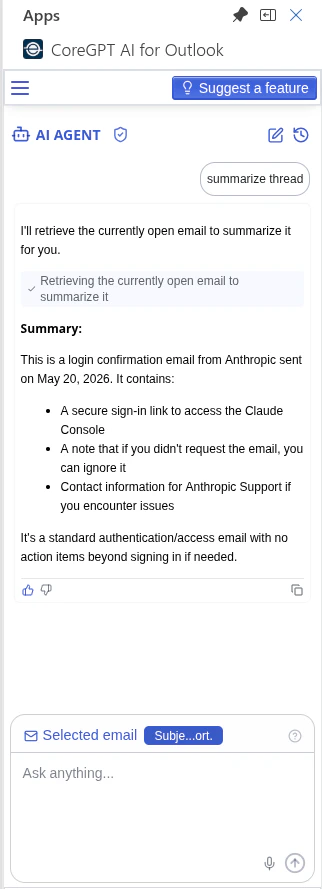
Find the **Summarize thread** button in the CoreGPT panel and click it.
The AI reads the entire thread and returns a clean bullet-point summary.
## Your first action — Summarize a thread
Once the panel is open:
Click on any email thread — the longer the better for this test.
Find the **Summarize thread** button in the CoreGPT panel and click it.
The AI reads the entire thread and returns a clean bullet-point summary.
 ## Can't find the icon?
The icon only appears when an email is open. Make sure you've clicked on an email to open it — it won't appear in the inbox list view.
If you're in Outlook desktop and still can't see it, check under **More commands (…)** in the ribbon, or go to **Home → Apps → My Add-ins** to confirm CoreGPT is enabled.
Try these steps:
1. Refresh the page (OWA) or restart Outlook (desktop)
2. Sign out of CoreGPT and sign back in
3. Disable and re-enable the add-in from **Manage Add-ins** in Outlook settings
In classic Outlook, the button appears in the ribbon under the **Home** tab when reading an email. If you can't see it, click the **…** (More commands) button at the end of the ribbon — it may be hidden due to screen width.
This usually means the add-in needs a moment to load. Wait 5–10 seconds and refresh. If it stays blank, sign out and back in from the CoreGPT panel.
## Next steps
See everything CoreGPT AI for Outlook can do — drafting, tone improvement, translation, and more.
Keep the panel open as you switch between emails — no need to reopen it each time.
## Can't find the icon?
The icon only appears when an email is open. Make sure you've clicked on an email to open it — it won't appear in the inbox list view.
If you're in Outlook desktop and still can't see it, check under **More commands (…)** in the ribbon, or go to **Home → Apps → My Add-ins** to confirm CoreGPT is enabled.
Try these steps:
1. Refresh the page (OWA) or restart Outlook (desktop)
2. Sign out of CoreGPT and sign back in
3. Disable and re-enable the add-in from **Manage Add-ins** in Outlook settings
In classic Outlook, the button appears in the ribbon under the **Home** tab when reading an email. If you can't see it, click the **…** (More commands) button at the end of the ribbon — it may be hidden due to screen width.
This usually means the add-in needs a moment to load. Wait 5–10 seconds and refresh. If it stays blank, sign out and back in from the CoreGPT panel.
## Next steps
See everything CoreGPT AI for Outlook can do — drafting, tone improvement, translation, and more.
Keep the panel open as you switch between emails — no need to reopen it each time.