> ## Documentation Index
> Fetch the complete documentation index at: https://help.coregptapps.com/llms.txt
> Use this file to discover all available pages before exploring further.
# CoreGPT AI for OneNote
> Summarize notes and generate action items with AI. Organize your thoughts with CoreGPT AI for OneNote. Note summarization, action item generation, content organization.
## Organize Your Thoughts with AI
Capture ideas, summarize notes, and generate action items automatically. CoreGPT AI for OneNote helps you stay organized and never miss an important task.
## Key Features
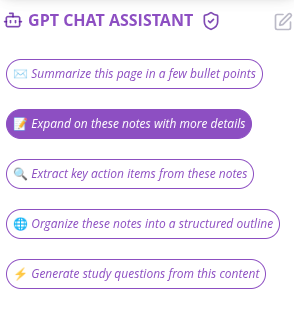
### GPT Chat Assistant
An AI agent that works with your selected note content. Select any text in your notes and ask the assistant to help you with custom requests or use pre-built actions.
**What you can do:**
* Ask custom questions about your notes
* Summarize notes in bullet points
* Generate action items from notes
* Extract key takeaways
* Organize and structure content
* Improve note clarity
* Fix grammar and formatting
* Translate notes to any language
* Create task lists
 ### Action Item Generation
Automatically extract action items and tasks from your notes with assigned owners and deadlines.
**What you can do:**
* Generate action items from notes automatically
* Identify tasks and deadlines
* Assign responsibilities to team members
* Create task lists with priorities
* Track follow-ups and next steps
## Common Use Cases
### Meeting Notes
1. Take notes during meeting
2. Summarize key points
3. Extract action items
4. Assign responsibilities
5. Share with team
### Project Planning
1. Capture project ideas
2. Organize by topic
3. Generate task list
4. Assign deadlines
5. Track progress
### Research & Learning
1. Capture research notes
2. Summarize key findings
3. Organize by topic
4. Create study guides
5. Review for exams
### Personal Organization
1. Capture daily notes
2. Summarize important info
3. Generate to-do lists
4. Track goals
5. Review progress
## How to Use
Highlight the text or section you want to work with.
Click the **GPT Chat Assistant** icon in OneNote.
Type a custom question in the chat box (e.g., "What are the main points?" or "Extract all action items")
The assistant will process your selected notes and provide results in the chat panel.
Click **Copy** to copy the result, or ask follow-up questions to refine it before copying.
## Tips & Best Practices
Start with pre-built actions for common tasks. They're optimized for note-taking workflows.
The chat assistant remembers context. Ask follow-up questions to refine results without re-selecting text.
Instead of "Improve this," try "Make this more concise" or "Organize by priority."
Always review generated summaries and action items to ensure accuracy.
## Note-Taking Best Practices
**Good note structure:**
* ✅ Clear headings
* ✅ Bullet points
* ✅ Key takeaways highlighted
* ✅ Action items marked
* ✅ Dates and deadlines noted
## Meeting Note Template
Use this structure for better results:
```
Meeting: [Title]
Date: [Date]
Attendees: [Names]
Key Decisions:
- [Decision 1]
- [Decision 2]
Action Items:
- [Task 1] - Owner: [Name] - Due: [Date]
- [Task 2] - Owner: [Name] - Due: [Date]
Next Steps:
- [Step 1]
- [Step 2]
```
## Example Requests
**For Summaries:**
* "Summarize this meeting in 3 bullet points"
* "What are the key decisions?"
* "Extract all important information"
**For Action Items:**
* "Generate action items from these notes"
* "Extract all tasks and deadlines"
* "Create a task list with owners"
**For Organization:**
* "Organize by: Decisions, Action Items, Follow-ups"
* "Create an outline with main topics"
* "Structure by priority and deadline"
**For Improvement:**
* "Make this more concise"
* "Improve clarity and formatting"
* "Fix grammar and structure"
## Troubleshooting
Ask for more detail:
* "Create a detailed summary with all key points"
* "Summarize in 3-4 paragraphs"
* "Extract all important information"
Make sure your notes clearly identify tasks:
* Use phrases like "needs to", "should", "must"
* Assign owners and deadlines
* Mark action items clearly
Try being more specific:
* "Organize by: Decisions, Action Items, Follow-ups"
* "Create outline with main topics and subtopics"
* "Structure by priority and deadline"
Try these steps:
1. Refresh your browser or app
2. Sign out and sign back in
3. Clear your browser cache
4. Try a different browser
## Privacy & Security
Your notes are safe:
* We never store your notes or content
* All processing is encrypted
* Your data stays in your OneNote account
* We don't use your notes to train models
## Next Steps
Learn about CoreGPT AI for Outlook, Word, Excel, PowerPoint, and Teams.
Find answers to common questions.
### Action Item Generation
Automatically extract action items and tasks from your notes with assigned owners and deadlines.
**What you can do:**
* Generate action items from notes automatically
* Identify tasks and deadlines
* Assign responsibilities to team members
* Create task lists with priorities
* Track follow-ups and next steps
## Common Use Cases
### Meeting Notes
1. Take notes during meeting
2. Summarize key points
3. Extract action items
4. Assign responsibilities
5. Share with team
### Project Planning
1. Capture project ideas
2. Organize by topic
3. Generate task list
4. Assign deadlines
5. Track progress
### Research & Learning
1. Capture research notes
2. Summarize key findings
3. Organize by topic
4. Create study guides
5. Review for exams
### Personal Organization
1. Capture daily notes
2. Summarize important info
3. Generate to-do lists
4. Track goals
5. Review progress
## How to Use
Highlight the text or section you want to work with.
Click the **GPT Chat Assistant** icon in OneNote.
Type a custom question in the chat box (e.g., "What are the main points?" or "Extract all action items")
The assistant will process your selected notes and provide results in the chat panel.
Click **Copy** to copy the result, or ask follow-up questions to refine it before copying.
## Tips & Best Practices
Start with pre-built actions for common tasks. They're optimized for note-taking workflows.
The chat assistant remembers context. Ask follow-up questions to refine results without re-selecting text.
Instead of "Improve this," try "Make this more concise" or "Organize by priority."
Always review generated summaries and action items to ensure accuracy.
## Note-Taking Best Practices
**Good note structure:**
* ✅ Clear headings
* ✅ Bullet points
* ✅ Key takeaways highlighted
* ✅ Action items marked
* ✅ Dates and deadlines noted
## Meeting Note Template
Use this structure for better results:
```
Meeting: [Title]
Date: [Date]
Attendees: [Names]
Key Decisions:
- [Decision 1]
- [Decision 2]
Action Items:
- [Task 1] - Owner: [Name] - Due: [Date]
- [Task 2] - Owner: [Name] - Due: [Date]
Next Steps:
- [Step 1]
- [Step 2]
```
## Example Requests
**For Summaries:**
* "Summarize this meeting in 3 bullet points"
* "What are the key decisions?"
* "Extract all important information"
**For Action Items:**
* "Generate action items from these notes"
* "Extract all tasks and deadlines"
* "Create a task list with owners"
**For Organization:**
* "Organize by: Decisions, Action Items, Follow-ups"
* "Create an outline with main topics"
* "Structure by priority and deadline"
**For Improvement:**
* "Make this more concise"
* "Improve clarity and formatting"
* "Fix grammar and structure"
## Troubleshooting
Ask for more detail:
* "Create a detailed summary with all key points"
* "Summarize in 3-4 paragraphs"
* "Extract all important information"
Make sure your notes clearly identify tasks:
* Use phrases like "needs to", "should", "must"
* Assign owners and deadlines
* Mark action items clearly
Try being more specific:
* "Organize by: Decisions, Action Items, Follow-ups"
* "Create outline with main topics and subtopics"
* "Structure by priority and deadline"
Try these steps:
1. Refresh your browser or app
2. Sign out and sign back in
3. Clear your browser cache
4. Try a different browser
## Privacy & Security
Your notes are safe:
* We never store your notes or content
* All processing is encrypted
* Your data stays in your OneNote account
* We don't use your notes to train models
## Next Steps
Learn about CoreGPT AI for Outlook, Word, Excel, PowerPoint, and Teams.
Find answers to common questions.