> ## Documentation Index
> Fetch the complete documentation index at: https://help.coregptapps.com/llms.txt
> Use this file to discover all available pages before exploring further.
# CoreGPT AI for Excel
> Supercharge your spreadsheets with CoreGPT AI for Excel. Use AI-powered custom Excel functions and a free-form chat assistant to analyze, translate, classify, and summarize data.
## Supercharge Your Spreadsheets with CoreGPT AI for Excel
AI-powered assistance right inside Microsoft Excel. CoreGPT AI for Excel gives you two tools: **GPT Functions** — custom Excel functions powered by AI that work directly in your cells — and a free-form **AI Chat** assistant.
## Key Features
### GPT Functions
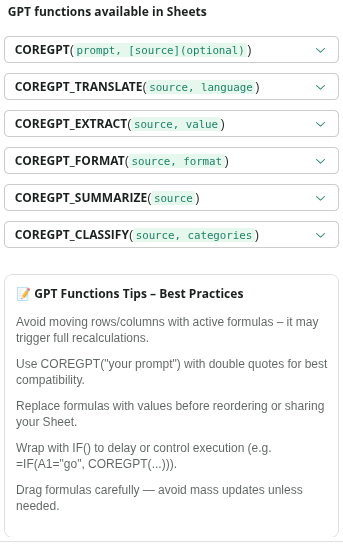
Custom Excel functions that bring AI directly into your spreadsheet formulas. Use them just like any built-in Excel function — type them in a cell and get AI-powered results instantly.
**Available functions:**
| Function | Parameters | What it does |
| --------------------------------------- | ------------------------- | -------------------------------------------- |
| `=COREGPT(prompt, [source])` | prompt, source (optional) | Ask AI anything — most flexible function |
| `=COREGPT_TRANSLATE(source, language)` | source, language | Translates text to any language |
| `=COREGPT_EXTRACT(source, value)` | source, value | Extracts a specific value from text |
| `=COREGPT_FORMAT(source, format)` | source, format | Formats text (e.g., capitalize, title case) |
| `=COREGPT_SUMMARIZE(source)` | source | Summarizes text into key points |
| `=COREGPT_CLASSIFY(source, categories)` | source, categories | Classifies text into your defined categories |
**Function examples:**
* `=COREGPT("give me 10 ideas about travelling")`
* `=COREGPT_TRANSLATE("banana is yellow fruit", "French")`
* `=COREGPT_EXTRACT("please notify john@gmail.com every day", "email")`
* `=COREGPT_FORMAT("world is changing with technology", "capitalize")`
* `=COREGPT_SUMMARIZE("your long content here")`
* `=COREGPT_CLASSIFY("car", "home, vehicle, human")`
 ### AI Chat
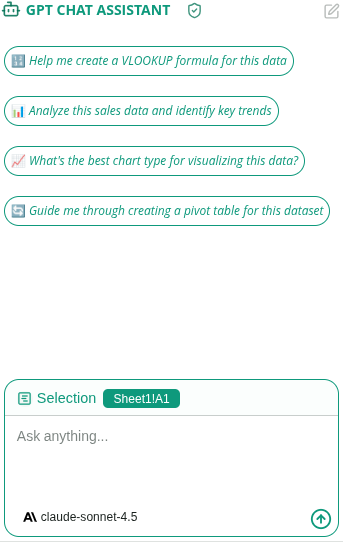
A free-form chat assistant that works with your selected cells. Select a range of data, then ask the assistant anything about it — or start a conversation from scratch.
**What you can do:**
* Ask questions about your selected data
* Get formula suggestions and explanations
* Analyze trends and patterns in your data
* Brainstorm ideas and approaches
* Ask follow-up questions to refine results
* Copy any response to your clipboard
### AI Chat
A free-form chat assistant that works with your selected cells. Select a range of data, then ask the assistant anything about it — or start a conversation from scratch.
**What you can do:**
* Ask questions about your selected data
* Get formula suggestions and explanations
* Analyze trends and patterns in your data
* Brainstorm ideas and approaches
* Ask follow-up questions to refine results
* Copy any response to your clipboard
 ## How to Use
### Using GPT Functions
Click on any empty cell where you want the AI result to appear.
Start typing `=COREGPT` and Excel will show the available functions. Select the one you need.
Add your prompt or reference a cell containing the text you want to process. For example: `=COREGPT_CLASSIFY(A2, "positive, negative, neutral")`
The function runs and the AI result appears in the cell. Drag the formula down to apply it to multiple rows.
### Using AI Chat
Click **Home** → **CoreGPT AI for Excel** to open the sidebar.
Click the **AI Chat** tab at the top of the sidebar.
Highlight a range of cells to give the assistant context about what you're working on.
Type your request in the chat box and press Enter (e.g., "What trends do you see in this data?" or "How do I calculate a running total?").
Click **Copy** on any response to copy it to your clipboard.
## Tips & Best Practices
Enter a GPT function in one cell, then drag it down to apply it to hundreds of rows at once — great for bulk classification or translation.
Instead of typing text directly, reference cells: `=COREGPT_SUMMARIZE(B2)`. This lets you process dynamic data automatically.
Define your own categories: `=COREGPT_CLASSIFY(A2, "urgent, normal, low priority")` — perfect for tagging support tickets, feedback, or tasks.
Not sure which function to use? Ask the AI Chat: "How do I extract the domain from an email address?" and get an explanation with examples.
## Example Use Cases
**Sentiment analysis on a column of reviews:**
* `=COREGPT_CLASSIFY(A2, "positive, negative, neutral")` — drag down to classify all rows
**Translate a product list to French:**
* `=COREGPT_TRANSLATE(B2, "French")` — drag down to translate all items
**Extract emails from a text column:**
* `=COREGPT_EXTRACT(C2, "email address")`
**Summarize long feedback entries:**
* `=COREGPT_SUMMARIZE(D2)` — condense each entry into a short summary
## Troubleshooting
Check these common issues:
* Make sure the cell reference is correct and not empty
* Verify you have an active internet connection
* Check that you're signed in to the add-in
* Try refreshing the function by pressing F2 then Enter
Try being more specific in your prompt. For COREGPT\_CLASSIFY, make sure your categories are clearly defined and separated by commas.
Try these steps:
1. Close and reopen Microsoft Excel
2. Sign out and sign back in
3. Check your internet connection
4. Reinstall the add-in if the issue persists
Yes! Each function call processes one cell at a time. For large datasets, apply the formula to the full column. Note that each cell uses credits, so large datasets will use more credits.
## Privacy & Security
Your data is safe:
* We never store your spreadsheets or data
* All processing is encrypted
* Your data stays in your Excel account
* We don't use your data to train models
## Next Steps
Learn about CoreGPT AI for Outlook, Word, PowerPoint, OneNote, and Teams.
Find answers to common questions.
## How to Use
### Using GPT Functions
Click on any empty cell where you want the AI result to appear.
Start typing `=COREGPT` and Excel will show the available functions. Select the one you need.
Add your prompt or reference a cell containing the text you want to process. For example: `=COREGPT_CLASSIFY(A2, "positive, negative, neutral")`
The function runs and the AI result appears in the cell. Drag the formula down to apply it to multiple rows.
### Using AI Chat
Click **Home** → **CoreGPT AI for Excel** to open the sidebar.
Click the **AI Chat** tab at the top of the sidebar.
Highlight a range of cells to give the assistant context about what you're working on.
Type your request in the chat box and press Enter (e.g., "What trends do you see in this data?" or "How do I calculate a running total?").
Click **Copy** on any response to copy it to your clipboard.
## Tips & Best Practices
Enter a GPT function in one cell, then drag it down to apply it to hundreds of rows at once — great for bulk classification or translation.
Instead of typing text directly, reference cells: `=COREGPT_SUMMARIZE(B2)`. This lets you process dynamic data automatically.
Define your own categories: `=COREGPT_CLASSIFY(A2, "urgent, normal, low priority")` — perfect for tagging support tickets, feedback, or tasks.
Not sure which function to use? Ask the AI Chat: "How do I extract the domain from an email address?" and get an explanation with examples.
## Example Use Cases
**Sentiment analysis on a column of reviews:**
* `=COREGPT_CLASSIFY(A2, "positive, negative, neutral")` — drag down to classify all rows
**Translate a product list to French:**
* `=COREGPT_TRANSLATE(B2, "French")` — drag down to translate all items
**Extract emails from a text column:**
* `=COREGPT_EXTRACT(C2, "email address")`
**Summarize long feedback entries:**
* `=COREGPT_SUMMARIZE(D2)` — condense each entry into a short summary
## Troubleshooting
Check these common issues:
* Make sure the cell reference is correct and not empty
* Verify you have an active internet connection
* Check that you're signed in to the add-in
* Try refreshing the function by pressing F2 then Enter
Try being more specific in your prompt. For COREGPT\_CLASSIFY, make sure your categories are clearly defined and separated by commas.
Try these steps:
1. Close and reopen Microsoft Excel
2. Sign out and sign back in
3. Check your internet connection
4. Reinstall the add-in if the issue persists
Yes! Each function call processes one cell at a time. For large datasets, apply the formula to the full column. Note that each cell uses credits, so large datasets will use more credits.
## Privacy & Security
Your data is safe:
* We never store your spreadsheets or data
* All processing is encrypted
* Your data stays in your Excel account
* We don't use your data to train models
## Next Steps
Learn about CoreGPT AI for Outlook, Word, PowerPoint, OneNote, and Teams.
Find answers to common questions.