> ## Documentation Index
> Fetch the complete documentation index at: https://help.coregptapps.com/llms.txt
> Use this file to discover all available pages before exploring further.
# GPT for Google Slides - CoreGPT Apps
> Create stunning presentations faster with AI. Build polished slides, engaging content, and compelling narratives in seconds. Smart Designer, Speaker Notes, 100+ languages.
## Create Stunning Presentations Faster
Build polished, engaging presentations in minutes instead of hours. ChatGPT for Google Workspace helps you create compelling content and beautiful designs.
## Key Features
### GPT Chat Assistant
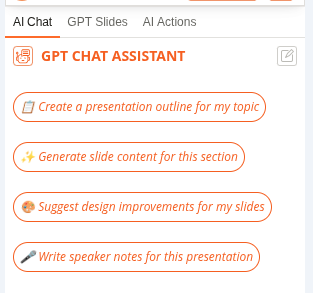
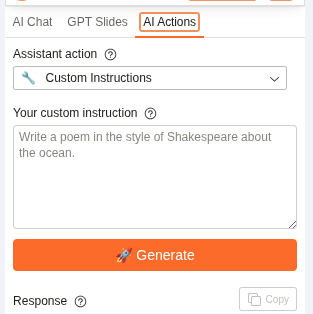
An AI agent that works with your selected slide content. Select any text on your slides and ask the assistant to help you with custom requests or use pre-built actions.
**What you can do:**
* Ask custom questions about your content
* Generate slide content and titles
* Create speaker notes automatically
* Rewrite for different tones
* Translate slides to 100+ languages
* Improve clarity and engagement
* Generate bullet points and descriptions
* Create call-to-action text
* Organize presentation flow
 ### Pre-built Actions
Quick actions for common presentation tasks:
* **Generate Content** - Create slide text
* **Generate Speaker Notes** - Create talking points
* **Rewrite** - Improve tone and clarity
* **Translate** - Convert to another language
### Pre-built Actions
Quick actions for common presentation tasks:
* **Generate Content** - Create slide text
* **Generate Speaker Notes** - Create talking points
* **Rewrite** - Improve tone and clarity
* **Translate** - Convert to another language
 ### Smart Designer
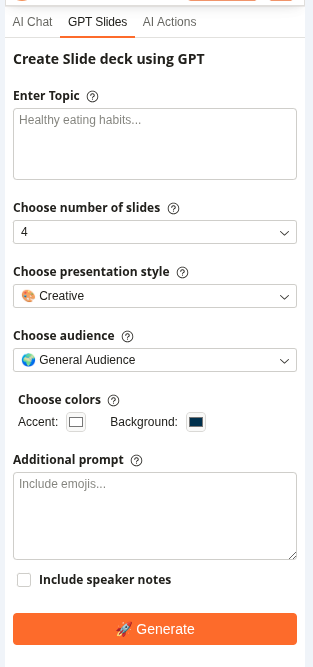
Intelligent design and formatting features:
* Apply consistent design themes across slides
* Auto-adjust fonts, colors, and layouts
* Maintain brand consistency
* Create professional-looking presentations
* Optimize slide layouts for readability
* Generate visually appealing designs
### Smart Designer
Intelligent design and formatting features:
* Apply consistent design themes across slides
* Auto-adjust fonts, colors, and layouts
* Maintain brand consistency
* Create professional-looking presentations
* Optimize slide layouts for readability
* Generate visually appealing designs
 ## Common Use Cases
### Business Presentations
1. Create slide outline
2. Generate content for each slide
3. Use Smart Designer for professional look
4. Generate speaker notes for delivery
### Sales Pitches
1. Create pitch structure
2. Generate compelling content
3. Design professional slides
4. Prepare speaker notes
### Educational Presentations
1. Create course outline
2. Generate educational content
3. Design clear, engaging slides
4. Create speaker notes for teaching
### Conference Talks
1. Organize presentation flow
2. Generate engaging content
3. Design professional slides
4. Prepare detailed speaker notes
## How to Use
Click on the text or slide you want to work with.
Click **Extensions** → **ChatGPT for Google Workspace** → **🚀 Launch GPT**
* Click a pre-built action button (Generate Content, Generate Speaker Notes, Rewrite, Translate)
* Or type a custom question in the chat box (e.g., "Create a compelling title for this slide" or "Generate speaker notes")
The assistant will process your selected content and provide results in the chat panel.
Click **Copy** to copy the result, or ask follow-up questions to refine it before copying.
## Tips & Best Practices
Create a slide outline first, then use ChatGPT for Google Workspace to generate content for each slide.
Always generate speaker notes to help you deliver your presentation confidently.
Use Smart Designer to maintain consistent branding across all slides.
Use bullet points and short sentences. Let speaker notes carry the detail.
## Supported Languages
ChatGPT for Google Workspace supports **100+ languages** including:
* English, Spanish, French, German, Italian, Portuguese
* Chinese (Simplified & Traditional), Japanese, Korean
* Arabic, Hebrew, Hindi, Thai, Vietnamese
* And many more...
## Slide Design Tips
**Good slide design:**
* ✅ One main idea per slide
* ✅ Bullet points (not paragraphs)
* ✅ Clear, readable fonts
* ✅ Consistent colors and themes
* ✅ Relevant visuals
## Troubleshooting
Try being more specific:
* "Generate 3 bullet points about..."
* "Create a short, punchy title"
* "Write a one-sentence summary"
Ask for more detail:
* "Generate detailed speaker notes with examples"
* "Create comprehensive talking points"
* "Write speaker notes with transitions between slides"
You can customize the design after applying Smart Designer:
* Change colors manually
* Adjust fonts
* Add your logo
* Modify layouts
## Privacy & Security
Your presentations are safe:
* We never store your presentations or content
* All processing is encrypted
* Your data stays in your Google account
* We don't use your content to train models
## Next Steps
Learn about ChatGPT for Google Workspace in Forms.
Find answers to common questions.
## Common Use Cases
### Business Presentations
1. Create slide outline
2. Generate content for each slide
3. Use Smart Designer for professional look
4. Generate speaker notes for delivery
### Sales Pitches
1. Create pitch structure
2. Generate compelling content
3. Design professional slides
4. Prepare speaker notes
### Educational Presentations
1. Create course outline
2. Generate educational content
3. Design clear, engaging slides
4. Create speaker notes for teaching
### Conference Talks
1. Organize presentation flow
2. Generate engaging content
3. Design professional slides
4. Prepare detailed speaker notes
## How to Use
Click on the text or slide you want to work with.
Click **Extensions** → **ChatGPT for Google Workspace** → **🚀 Launch GPT**
* Click a pre-built action button (Generate Content, Generate Speaker Notes, Rewrite, Translate)
* Or type a custom question in the chat box (e.g., "Create a compelling title for this slide" or "Generate speaker notes")
The assistant will process your selected content and provide results in the chat panel.
Click **Copy** to copy the result, or ask follow-up questions to refine it before copying.
## Tips & Best Practices
Create a slide outline first, then use ChatGPT for Google Workspace to generate content for each slide.
Always generate speaker notes to help you deliver your presentation confidently.
Use Smart Designer to maintain consistent branding across all slides.
Use bullet points and short sentences. Let speaker notes carry the detail.
## Supported Languages
ChatGPT for Google Workspace supports **100+ languages** including:
* English, Spanish, French, German, Italian, Portuguese
* Chinese (Simplified & Traditional), Japanese, Korean
* Arabic, Hebrew, Hindi, Thai, Vietnamese
* And many more...
## Slide Design Tips
**Good slide design:**
* ✅ One main idea per slide
* ✅ Bullet points (not paragraphs)
* ✅ Clear, readable fonts
* ✅ Consistent colors and themes
* ✅ Relevant visuals
## Troubleshooting
Try being more specific:
* "Generate 3 bullet points about..."
* "Create a short, punchy title"
* "Write a one-sentence summary"
Ask for more detail:
* "Generate detailed speaker notes with examples"
* "Create comprehensive talking points"
* "Write speaker notes with transitions between slides"
You can customize the design after applying Smart Designer:
* Change colors manually
* Adjust fonts
* Add your logo
* Modify layouts
## Privacy & Security
Your presentations are safe:
* We never store your presentations or content
* All processing is encrypted
* Your data stays in your Google account
* We don't use your content to train models
## Next Steps
Learn about ChatGPT for Google Workspace in Forms.
Find answers to common questions.