> ## Documentation Index
> Fetch the complete documentation index at: https://help.coregptapps.com/llms.txt
> Use this file to discover all available pages before exploring further.
# GPT for Google Sheets - CoreGPT Apps
> Supercharge your spreadsheets with AI. Transform your data in seconds with GPT Classify, Smart Summarize, and Formula Generator. Handle heavy lifting from formulas to complex data.
## Supercharge Your Spreadsheets
Transform your data in seconds, not hours. ChatGPT for Google Workspace handles the heavy lifting — from generating formulas to making sense of complex data.
## Key Features
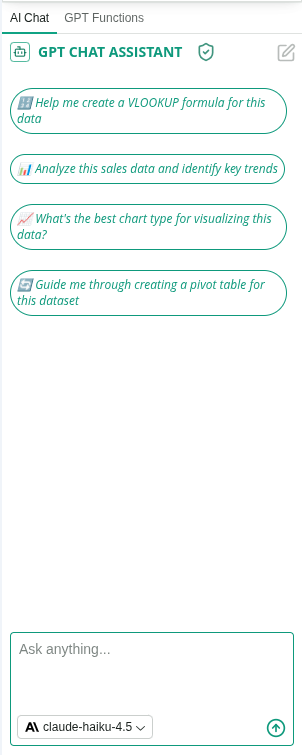
### GPT Chat Assistant
An AI agent that works with your selected spreadsheet content. Select any cells or data and ask the assistant to help you with custom requests or use pre-built actions.
**What you can do:**
* Ask custom questions about your data
* Classify and categorize data automatically
* Summarize data ranges and insights
* Generate formulas from descriptions
* Analyze trends and patterns
* Extract key insights
* Create reports and summaries
* Organize and structure data
 ### Custom GPT Functions
Use AI-powered custom functions directly in your spreadsheet cells:
* **COREGPT()** - Ask AI anything about your data with custom prompts
* **COREGPT\_TRANSLATE()** - Translate cell content to any language
* **COREGPT\_EXTRACT()** - Extract specific information from text
* **COREGPT\_FORMAT()** - Reformat text to your desired format
* **COREGPT\_SUMMARIZE()** - Summarize cell content automatically
* **COREGPT\_CLASSIFY()** - Classify text into categories you define
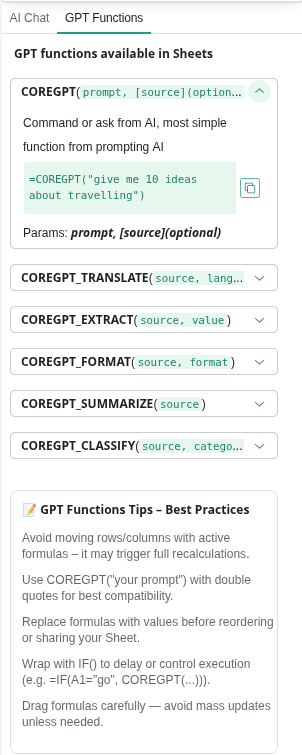
### Custom GPT Functions
Use AI-powered custom functions directly in your spreadsheet cells:
* **COREGPT()** - Ask AI anything about your data with custom prompts
* **COREGPT\_TRANSLATE()** - Translate cell content to any language
* **COREGPT\_EXTRACT()** - Extract specific information from text
* **COREGPT\_FORMAT()** - Reformat text to your desired format
* **COREGPT\_SUMMARIZE()** - Summarize cell content automatically
* **COREGPT\_CLASSIFY()** - Classify text into categories you define
 ## Common Use Cases
### Sales Pipeline Management
1. Import sales leads
2. Use Classify to tag by priority
3. Summarize pipeline status
4. Generate reports for management
### Survey Analysis
1. Collect survey responses
2. Use Classify to categorize answers
3. Summarize key findings
4. Generate insights report
### Financial Tracking
1. Create expense spreadsheet
2. Use Classify to categorize expenses
3. Generate SUM formulas automatically
4. Summarize spending by category
### Project Management
1. Track project tasks
2. Use Classify to organize by status
3. Generate formulas for progress tracking
4. Summarize project status
## How to Use
Highlight the cells or column you want to work with.
Click **Extensions** → **ChatGPT for Google Workspace** → **🚀 Launch GPT**
* Click a pre-built action button (Classify, Summarize, Generate Formula, Analyze)
* Or type a custom question in the chat box (e.g., "Categorize these by priority" or "Generate a SUM formula")
The assistant will process your selected data and provide results in the chat panel.
Click **Copy** to copy the result, or ask follow-up questions to refine it before copying.
## Tips & Best Practices
Start with pre-built actions for common tasks. They're optimized for spreadsheet workflows.
The chat assistant remembers context. Ask follow-up questions to refine results without re-selecting data.
Instead of "Analyze this," try "Find trends in sales by month" or "Categorize by priority level."
Always test generated formulas on a small data set before applying to large datasets.
## Example Requests
**For Classification:**
* "Categorize these by priority level"
* "Tag sales leads as hot, warm, or cold"
* "Classify survey responses by sentiment"
**For Summarization:**
* "Summarize this data range in 3 key insights"
* "What are the main trends in this data?"
* "Extract key metrics from this dataset"
**For Custom Functions:**
* `=COREGPT("What is the average of this data?", A1:A10)`
* `=COREGPT_TRANSLATE(A1, "Spanish")`
* `=COREGPT_EXTRACT(A1, "email address")`
* `=COREGPT_CLASSIFY(A1, "High Priority, Medium Priority, Low Priority")`
* `=COREGPT_SUMMARIZE(A1)`
* `=COREGPT_FORMAT(A1, "Title Case")`
**For Analysis:**
* "Find trends in sales by month"
* "Identify outliers in this dataset"
* "Analyze which products have highest profit margins"
## Troubleshooting
Be more specific with your categories. Instead of "Classify," try:
* "Classify as: Hot Lead, Warm Lead, Cold Lead based on engagement level"
* "Categorize by: Urgent, Important, Can Wait"
Check that:
* You're using the correct function name (COREGPT, COREGPT\_TRANSLATE, etc.)
* Your cell references are in quotes or use proper range syntax
* The function parameters match the required format
* You have an active internet connection
If the function returns an error, try simplifying your prompt or parameters.
Try being more specific:
* "Summarize in 2-3 sentences"
* "Create a detailed summary with all key points"
* "Extract only the most important insights"
## Privacy & Security
Your spreadsheets are safe:
* We never store your data or spreadsheets
* All processing is encrypted
* Your data stays in your Google account
* We don't use your data to train models
## Next Steps
Learn about ChatGPT for Google Workspace in Slides and Forms.
Find answers to common questions.
## Common Use Cases
### Sales Pipeline Management
1. Import sales leads
2. Use Classify to tag by priority
3. Summarize pipeline status
4. Generate reports for management
### Survey Analysis
1. Collect survey responses
2. Use Classify to categorize answers
3. Summarize key findings
4. Generate insights report
### Financial Tracking
1. Create expense spreadsheet
2. Use Classify to categorize expenses
3. Generate SUM formulas automatically
4. Summarize spending by category
### Project Management
1. Track project tasks
2. Use Classify to organize by status
3. Generate formulas for progress tracking
4. Summarize project status
## How to Use
Highlight the cells or column you want to work with.
Click **Extensions** → **ChatGPT for Google Workspace** → **🚀 Launch GPT**
* Click a pre-built action button (Classify, Summarize, Generate Formula, Analyze)
* Or type a custom question in the chat box (e.g., "Categorize these by priority" or "Generate a SUM formula")
The assistant will process your selected data and provide results in the chat panel.
Click **Copy** to copy the result, or ask follow-up questions to refine it before copying.
## Tips & Best Practices
Start with pre-built actions for common tasks. They're optimized for spreadsheet workflows.
The chat assistant remembers context. Ask follow-up questions to refine results without re-selecting data.
Instead of "Analyze this," try "Find trends in sales by month" or "Categorize by priority level."
Always test generated formulas on a small data set before applying to large datasets.
## Example Requests
**For Classification:**
* "Categorize these by priority level"
* "Tag sales leads as hot, warm, or cold"
* "Classify survey responses by sentiment"
**For Summarization:**
* "Summarize this data range in 3 key insights"
* "What are the main trends in this data?"
* "Extract key metrics from this dataset"
**For Custom Functions:**
* `=COREGPT("What is the average of this data?", A1:A10)`
* `=COREGPT_TRANSLATE(A1, "Spanish")`
* `=COREGPT_EXTRACT(A1, "email address")`
* `=COREGPT_CLASSIFY(A1, "High Priority, Medium Priority, Low Priority")`
* `=COREGPT_SUMMARIZE(A1)`
* `=COREGPT_FORMAT(A1, "Title Case")`
**For Analysis:**
* "Find trends in sales by month"
* "Identify outliers in this dataset"
* "Analyze which products have highest profit margins"
## Troubleshooting
Be more specific with your categories. Instead of "Classify," try:
* "Classify as: Hot Lead, Warm Lead, Cold Lead based on engagement level"
* "Categorize by: Urgent, Important, Can Wait"
Check that:
* You're using the correct function name (COREGPT, COREGPT\_TRANSLATE, etc.)
* Your cell references are in quotes or use proper range syntax
* The function parameters match the required format
* You have an active internet connection
If the function returns an error, try simplifying your prompt or parameters.
Try being more specific:
* "Summarize in 2-3 sentences"
* "Create a detailed summary with all key points"
* "Extract only the most important insights"
## Privacy & Security
Your spreadsheets are safe:
* We never store your data or spreadsheets
* All processing is encrypted
* Your data stays in your Google account
* We don't use your data to train models
## Next Steps
Learn about ChatGPT for Google Workspace in Slides and Forms.
Find answers to common questions.