> ## Documentation Index
> Fetch the complete documentation index at: https://help.coregptapps.com/llms.txt
> Use this file to discover all available pages before exploring further.
# GPT for Google Docs - CoreGPT Apps
> Write smarter, not harder with ChatGPT for Google Workspace in Google Docs. Enhance your writing, save time, and bring your ideas to life. Outline generator, smart rewrite, translation in 100+ languages.
## Write Smarter with ChatGPT for Google Workspace — Google Docs
Transform your writing with AI assistance right inside Google Docs. From drafting to polishing, ChatGPT for Google Workspace helps you write better, faster.
## Key Features
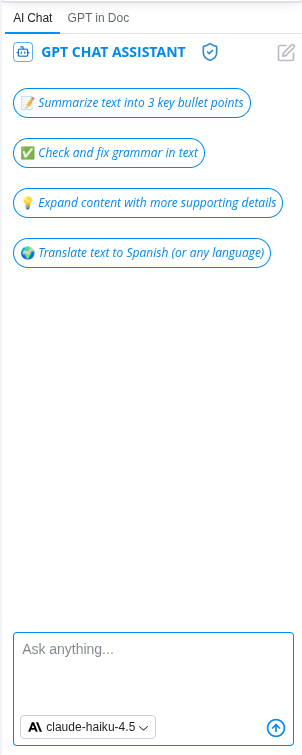
### GPT Chat Assistant
An AI agent that works with your selected document content. Select any text in your document and ask the assistant to help you with custom requests or use pre-built actions.
**What you can do:**
* Ask custom questions about your content
* Rewrite text for different tones
* Summarize documents and sections
* Generate outlines and structure
* Translate to 100+ languages
* Improve clarity and grammar
* Expand ideas and brainstorm
* Create variations of content
* Generate new paragraphs
 ### GPT Docs
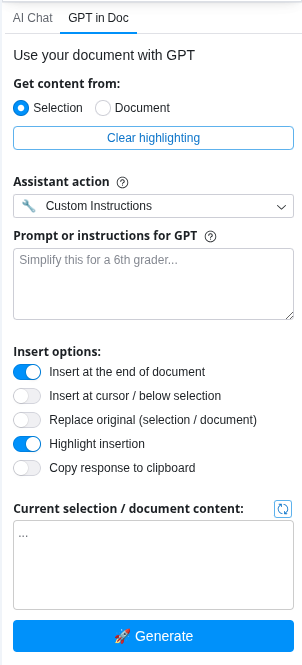
Specialized document generation and enhancement features:
* Generate complete documents from outlines
* Create structured reports with sections
* Build proposals with professional formatting
* Generate blog posts and articles
* Create meeting notes and summaries
* Build document templates
### GPT Docs
Specialized document generation and enhancement features:
* Generate complete documents from outlines
* Create structured reports with sections
* Build proposals with professional formatting
* Generate blog posts and articles
* Create meeting notes and summaries
* Build document templates
 ## Common Use Cases
### Blog Writing
1. Generate an outline from your topic
2. Write your first draft
3. Use Smart Rewrite to improve tone
4. Translate to reach global audiences
### Professional Reports
1. Create an outline
2. Generate content sections
3. Rewrite for professional tone
4. Summarize key findings
### Email & Communication
1. Draft your message
2. Rewrite for appropriate tone
3. Check grammar and clarity
4. Translate if needed
### Content Localization
1. Write in English
2. Translate to target languages
3. Adapt for local audiences
4. Maintain brand voice
## How to Use
Highlight the text you want to work with, or position your cursor where you want to generate new content.
Click **Extensions** → **ChatGPT for Google Workspace** → **🚀 Launch GPT**
* Click a pre-built action button (Rewrite, Summarize, Translate, Generate, Outline)
* Or type a custom question in the chat box (e.g., "Make this more professional" or "Expand this idea")
The assistant will process your selected text and provide results in the chat panel.
Click **Copy** to copy the result, or ask follow-up questions to refine it before copying.
## Tips & Best Practices
Start with pre-built actions for common tasks. They're optimized for writing workflows.
The chat assistant remembers context. Ask follow-up questions to refine results without re-selecting text.
Instead of "Make it better," try "Rewrite in a professional tone for a client proposal."
Generate content, then rewrite for tone, then translate for global reach.
## Supported Languages
ChatGPT for Google Workspace supports **100+ languages** including:
* English, Spanish, French, German, Italian, Portuguese
* Chinese (Simplified & Traditional), Japanese, Korean
* Arabic, Hebrew, Hindi, Thai, Vietnamese
* And many more...
## Example Requests
**For Rewriting:**
* "Rewrite in a professional tone for a client proposal"
* "Make this more concise and clear"
* "Rewrite in a friendly, conversational style"
**For Summarizing:**
* "Summarize this section in 3 bullet points"
* "What are the key takeaways?"
* "Create an executive summary"
**For Generating:**
* "Generate an outline for a blog post about AI"
* "Expand this idea into a full paragraph"
* "Create 3 variations of this sentence"
**For Translating:**
* "Translate this to Spanish"
* "Convert to French and maintain professional tone"
* "Translate to German"
## Troubleshooting
Try being more specific in your request. For example:
* "Rewrite in the style of a technical blog post"
* "Use simple language for a general audience"
* "Write in an academic tone"
Try providing more context. Instead of just keywords, describe your topic more fully:
* "Create an outline for a blog post about AI in healthcare, covering benefits, challenges, and future trends"
AI translations are good but not perfect. Always review translated content for:
* Accuracy of meaning
* Appropriate tone
* Cultural context
Make manual edits as needed.
Try these steps:
1. Refresh your browser or app
2. Sign out and sign back in
3. Clear your browser cache
4. Try a different browser
## Privacy & Security
Your documents are safe:
* We never store your documents or content
* All processing is encrypted
* Your data stays in your Google account
* We don't use your content to train models
## Next Steps
Learn about ChatGPT for Google Workspace in Sheets, Slides, and Forms.
Find answers to common questions.
## Common Use Cases
### Blog Writing
1. Generate an outline from your topic
2. Write your first draft
3. Use Smart Rewrite to improve tone
4. Translate to reach global audiences
### Professional Reports
1. Create an outline
2. Generate content sections
3. Rewrite for professional tone
4. Summarize key findings
### Email & Communication
1. Draft your message
2. Rewrite for appropriate tone
3. Check grammar and clarity
4. Translate if needed
### Content Localization
1. Write in English
2. Translate to target languages
3. Adapt for local audiences
4. Maintain brand voice
## How to Use
Highlight the text you want to work with, or position your cursor where you want to generate new content.
Click **Extensions** → **ChatGPT for Google Workspace** → **🚀 Launch GPT**
* Click a pre-built action button (Rewrite, Summarize, Translate, Generate, Outline)
* Or type a custom question in the chat box (e.g., "Make this more professional" or "Expand this idea")
The assistant will process your selected text and provide results in the chat panel.
Click **Copy** to copy the result, or ask follow-up questions to refine it before copying.
## Tips & Best Practices
Start with pre-built actions for common tasks. They're optimized for writing workflows.
The chat assistant remembers context. Ask follow-up questions to refine results without re-selecting text.
Instead of "Make it better," try "Rewrite in a professional tone for a client proposal."
Generate content, then rewrite for tone, then translate for global reach.
## Supported Languages
ChatGPT for Google Workspace supports **100+ languages** including:
* English, Spanish, French, German, Italian, Portuguese
* Chinese (Simplified & Traditional), Japanese, Korean
* Arabic, Hebrew, Hindi, Thai, Vietnamese
* And many more...
## Example Requests
**For Rewriting:**
* "Rewrite in a professional tone for a client proposal"
* "Make this more concise and clear"
* "Rewrite in a friendly, conversational style"
**For Summarizing:**
* "Summarize this section in 3 bullet points"
* "What are the key takeaways?"
* "Create an executive summary"
**For Generating:**
* "Generate an outline for a blog post about AI"
* "Expand this idea into a full paragraph"
* "Create 3 variations of this sentence"
**For Translating:**
* "Translate this to Spanish"
* "Convert to French and maintain professional tone"
* "Translate to German"
## Troubleshooting
Try being more specific in your request. For example:
* "Rewrite in the style of a technical blog post"
* "Use simple language for a general audience"
* "Write in an academic tone"
Try providing more context. Instead of just keywords, describe your topic more fully:
* "Create an outline for a blog post about AI in healthcare, covering benefits, challenges, and future trends"
AI translations are good but not perfect. Always review translated content for:
* Accuracy of meaning
* Appropriate tone
* Cultural context
Make manual edits as needed.
Try these steps:
1. Refresh your browser or app
2. Sign out and sign back in
3. Clear your browser cache
4. Try a different browser
## Privacy & Security
Your documents are safe:
* We never store your documents or content
* All processing is encrypted
* Your data stays in your Google account
* We don't use your content to train models
## Next Steps
Learn about ChatGPT for Google Workspace in Sheets, Slides, and Forms.
Find answers to common questions.